One Party
$49one-time
For a single celebration
Unlimited photos, videos & guests








Original quality (no compression)
Film roll mode with shot limit & revealNEW
QR code template designs




3 months upload from party date
6 months storage + ZIP download
 wedding
Make a shared album in Photos, then invite people or send a link. On iOS 27 they can join on the web, Android phones included, even without an Apple Account. Below: Apple’s exact steps for iOS 27 and iOS 26, three other ways to share and which one fits your group.
Every step and limit checked against Apple Support. Checked 3 October 2026.

 3
3









Open Photos, tap Collections, scroll to Shared Albums and tap the Add button. Name the album, pick photos, then tap Sharing Options to invite people or share it with a link, and tap Done. For a household that shares everything, use iCloud Shared Photo Library. For one person nearby, select the photos and send them with AirDrop or Messages.
Sources: Apple Support on shared album limits, Shared Photo Library and temporary albums. Checked 3 October 2026.
Shared Albums has to be on before the Shared Albums section shows up in Photos. Apple’s four steps are below.
iOS 27 changed how shared albums work, so an album made today behaves differently from one made last year. Albums keep the rules of the version they were created on until you upgrade them.
Turn on Shared Albums
From Apple Support. Checked 3 October 2026.
Sources: Apple’s shared album limits and Shared Albums guide. Checked 3 October 2026.
This is how to share an album on iPhone with iOS 27 or later, in the same words Apple uses for each button. The album is created and shared in one pass.
Open the Photos app and tap Collections.
Scroll down to Shared Albums, then tap Shared Albums.
Tap the Add button to start a new shared album.
Give the shared album a name and choose some images to add.
Tap Sharing Options to choose whether to invite and approve participants, or share the album with a link. To create a temporary shared album, turn on Make Album Temporary.
Tap the Done button. Then send the invite or the link by Messages, Mail or any app.
Swipe for all six steps
Apple’s note for iOS 27: Shared Albums gained full-resolution sharing, filters and sorting, emoji reactions and new ways to invite people, and friends can join and contribute on the web without an Apple Account or Apple device. Steps from Apple Support. Checked 3 October 2026. The phone above is an illustration, not a screenshot.
Everything for an iOS 27 album lives behind one button: Manage Shared Album. You choose in Sharing Options whether only invited or approved people get in, or anyone with the link can join without approval.
They open the link on an Apple or a non-Apple device. If approval is on, they tap or click Send Request and wait for you. People who are not on the latest software need to update, or they can view the album on iCloud.com. Apple’s full list is on its Shared Albums page.
Invitation never arrived? Shared Albums has to be on when it is sent, so turn it on, check the email address, and look in Notification Center, in Photos under Collections or at icloud.com/photos, per Apple’s invitation help page. If the person declined by mistake, send a new invite.
Adding more photos later: tap Select, choose photos, tap the Share button, tap Add to Shared Album, pick the album and tap Done. The album owner can delete anyone’s photos, videos and comments; everyone else can delete their own. Photos someone already saved to their library stay there.
Apple keeps a separate set of steps for iOS 26, iPadOS 26 and visionOS 26. You invite people by contact, email or iMessage number when you create the album, and new photos need one extra tap on Post.
Create a shared album, the older way
Public Website is for viewing. It puts the album on a website anyone with the link can see, but they cannot add photos. On iOS 27 you share with a link through Sharing Options instead; Public Website is the iOS 26 method.
Steps and button names from Apple Support. Let a participant add photos on iOS 26: tap the More button, tap the album name, then turn on Participants Can Add Photos. Checked 3 October 2026.
Share album is one button, but the right tool depends on who is on the other end. Choose the closest match and the card shows the method, the steps that matter and the catch.
A shared album with a link (iOS 27)
Apple says friends can join and add photos on the web, even without an Apple Account or Apple device.
See the iOS 27 stepsApple facts from Shared Albums, Shared Photo Library, temporary albums, AirDrop and the iOS 27 iPhone User Guide. Pix upload limits are our own. Checked 3 October 2026.
An album you made before iOS 27 stays the way it was until you upgrade it. Upgrading brings full resolution and link invites, and it moves new uploads onto your iCloud bill.
Upgrade Shared Album
From Apple Support. Checked 3 October 2026.
5 GB
is the free iCloud storage every Apple Account gets, per Apple. iCloud+ starts at 50 GB for $0.99 a month in the US, then 200 GB for $2.99 and 2 TB for $9.99.
A busy iOS 27 album with friends adding full-resolution video can fill 5 GB fast. For a weekend or a party, turn on Make Album Temporary: it does not use your storage at all.
Watch the upgrade on a real iPhone
A five-minute walkthrough of full-resolution shared albums in iOS 27 and the Upgrade Shared Album button, filmed after release. It comes from a software vendor’s channel, so skip the product mentions; the Photos steps match Apple’s.
Watch on YouTubeA shared album is not always the right tool. A household that wants every photo in one place, or one friend standing next to you, is better served by one of these.
One library for you and up to five people
From Apple Support. To switch libraries on iOS 27, tap Library, the Sort and Filter button, then Library View.
Send a copy
Tap Select, tap the photos, tap the Share button, then choose Mail, Messages or another app. Tap Options first to turn off Keywords, change the file format, or turn on All Photos Data, which sends the original with its edit history (AirDrop only, per the iOS 27 guide).
On iOS 26, Options also has iCloud Link: turn it on to share a URL people can use to view or download, available for 30 days, per the iOS 26 guide.
AirDrop
Both of you turn on Wi-Fi and Bluetooth, and Personal Hotspot goes off. Tap Select, pick the photos, tap the Share button, tap AirDrop, then tap the person. They tap Accept. Not in your contacts? They set AirDrop to Everyone for 10 Minutes in Control Center, and on iOS 26.2 or later you enter an AirDrop code, per Apple.
On iOS 27 you can also bring two iPhones close together and tap Share. Android: Google says Quick Share works with AirDrop, rolling out first to the Pixel 10 family.
A shared album is built for people you know and can invite. At a wedding or a big birthday, half the guests are strangers to your contacts, many use Android, and the room can pass the 100-person cap.
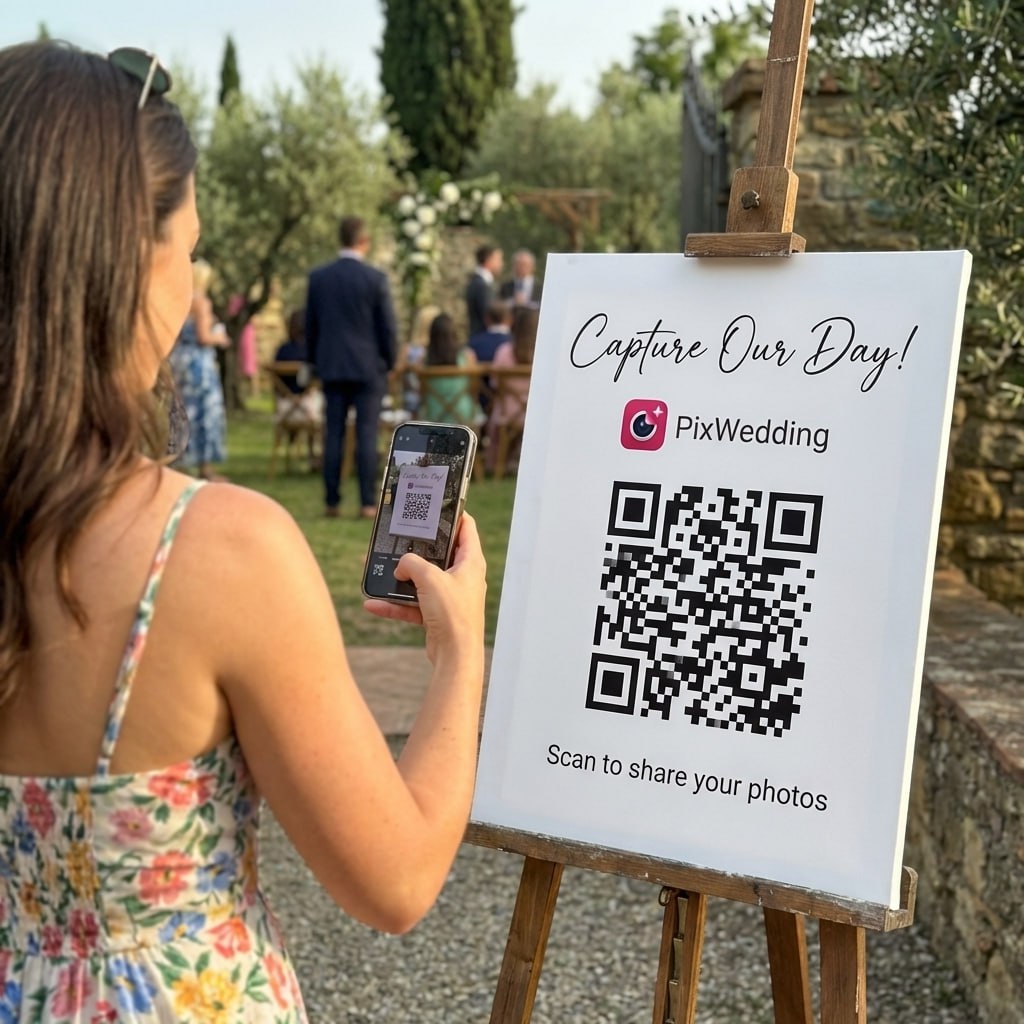
A QR code guest album turns that around: you print one code, guests scan it and upload in the phone browser, and every photo lands in one album without anyone joining iCloud. On Pix, guests add 149 photos at the median wedding.
The 149 figure comes from 203 real weddings, see how many photos at an average wedding. For the full setup, read our guide to collecting photos from wedding guests, or compare apps in the best wedding photo sharing app.
NewNewSwipe for the album screen
Free to try with 20 uploads, no card. Every paid plan is a one-time payment with unlimited photos, videos and guests. What changes between them is how long the album takes uploads, how long it is stored and the extras.
For a single celebration
For a crowd, a screen and a dance floor
One-time payment, no subscription
For big guest lists and repeat events
One payment. Yours to keep. No subscription. No renewals. No surprise charges.
Secure checkout. Polar, Apple Pay, Google Pay.
Money-back guarantee: if your guests never upload a single photo, you get 100% back. See how it works
Watch a guest scan the QR code and add photos from the phone browser in seconds, iPhone or Android, with no app and no account.
EVENT ALBUM
Example album
Maya & Jonah
214 photos, one QR code
One QR code, one album, every phone. Guests upload in the browser with no app and no account, and you decide whether they can view and download. 20 uploads free, no card.
From the dance floor
Scan to join the album
No app, no account
UPLOADING
THE ALBUM
Example album
214 photos · 38 guests
SCAN TO TRY
pix.wedding/
your-wedding
Quick answers on non-Apple viewers, people limits, quality, video, links without an Apple Account, storage and the event alternative.
Yes. For albums made on iOS 27 or later, Apple says friends and family can join and add their own photos on the web, even without an Apple Account or an Apple device: send them the album link and they open it in a browser. For an album made on iOS 26 or earlier, tap the More button, then Shared Album Details, and turn on Public Website. Anyone with the link can then view it in an up-to-date web browser, but they cannot add photos that way.
Up to 100 people per album, and for albums made on iOS 27 that count includes you as the owner. Albums made on iOS 26 or earlier allow up to 100 subscribers. If you mean iCloud Shared Photo Library instead, that one is you plus up to five other people. For a wedding or a big party with more than 100 guests, a QR code guest album is the usual way around the cap.
It depends on when the album was made. Albums made on iOS 27 or later store photos and videos in their original format at full resolution. Albums made on iOS 26 or earlier reduce photos to 2,048 pixels on the long edge (panoramas up to 5,400 pixels wide) and deliver video at up to 720p. To fix an older album, open it, tap the More button and tap Upgrade Shared Album. New items then keep their original resolution.
In albums made on iOS 26 or earlier, Apple lists videos of up to fifteen minutes, delivered at up to 720p. A 4K clip plays back at 720p, and anything past fifteen minutes is over the limit, so split long recordings first. Albums made on iOS 27 keep video at full resolution, so upgrading the album (More, then Upgrade Shared Album) fixes new uploads. Videos already in the album stay as they are.
Yes. On iOS 27, create the shared album and tap Sharing Options to share it with a link, or tap Manage Shared Album and then Copy Album Link. People can open it on any device and join on the web without an Apple Account. On iOS 26, turn on Public Website for view-only access, or send photos with an iCloud link (Share button, Options, iCloud Link), which stays available for 30 days.
A QR code guest album that runs in the phone browser. Guests scan one code, add photos without an app or an account, and there is no 100-person cap or iCloud storage bill for the couple. On Pix Wedding guests can upload photos up to 30MB each and videos up to 100MB each, so long clips are best filmed in 1080p. You can try it free with 20 uploads, and paid plans are one-time payments with unlimited photos, videos and guests.
Albums made on iOS 27 or later do, and so does everything participants add to them. Temporary shared albums do not count. Albums made on iOS 26 or earlier are kept in iCloud without counting toward your storage. After you upgrade an older album, the items already in it still do not count, but new items count toward the owner.
An iOS 27 album that expires after 30 days. Turn on Make Album Temporary when you create it. It does not use your iCloud storage, does not need iCloud Photos turned on, and holds up to 5,000 photos and videos from everyone combined. Items nobody saved are deleted at the end. To keep it, open Manage Shared Album and turn off Make Album Temporary, and from then on it counts toward your storage.
A Shared Album is a separate album you share with up to 100 people, and the photos stay in your own library too. iCloud Shared Photo Library is one library for you and up to five other people: photos you add move out of your Personal Library into it, everyone can add, edit and delete, and the person who set it up pays the storage. Albums suit groups and events, the Shared Library suits a household.
Sharing with guests after an event, sharing with a group that will not install anything, and how the other big photo services compare.
Sources, checked 3 October 2026
The phone screens on this page are illustrations built from Apple’s button names, not screenshots. Wedding weekend, Maya & Jonah, the other names and the counts in the mockups are illustrative. Photos are from our own library.
Free tools for the QR code, the shot list and the thank-you notes that go out with the album link.
Design custom print-ready stickers.
Create unique wedding hashtags.
5 methods ranked by participation rate and ease.
Compare every sharing platform by ease and participation.
The single method with the highest participation rate.
Step-by-step setup for every platform.
Better, cheaper options than disposable cameras.
5 cheaper alternatives to a $1,000+ photo booth rental.