
Google Sheet Wedding Planner Template: Real-Time Collaboration for Your Whole Team
Build a free wedding planner in Google Sheets with shared access, real-time updates, and a complete tab structure. Perfect for couples planning together across devices.
Why Google Sheets Is the Collaboration Tool of Choice
Wedding planning involves at least a dozen people who all need access to information. Google Sheets was built for exactly this.
Real-Time Sync
Changes appear instantly for everyone with access. No refreshing, no emailing updated files, no "which version is current?" confusion.
Link-Based Sharing
Share with anyone via a link. Set them as Editor, Commenter, or Viewer. Revoke access instantly when the wedding is over.
Full Mobile Access
The Google Sheets app on iOS and Android has full editing capability. Update RSVPs from anywhere when replies come in.
Automatic Backup
Everything saves to Google Drive automatically. Version history lets you see every change ever made and restore any previous state.
Tab-Level Protection
Protect sensitive tabs (budget, vendor contracts) while leaving others open. Each collaborator only accesses what they need.
Change Notifications
Turn on notifications (Tools > Notification settings > Edit notifications) to get an email when someone edits the spreadsheet, right away or as a daily digest.
Tab-by-Tab Setup Guide
Six tabs covers every planning dimension. Here is what to put on each one and who should have access.
Dashboard
Budget
Guest List
Checklist
Vendors
Seating Chart
Who Gets Access to What
Give your caterer Editor access to the whole workbook and there is a real chance the headcount formula gets overwritten by accident. Give your mother-in-law only Viewer access to the guest list and she cannot add the six cousins she just remembered. Match the access level to what each person needs to do, nothing more.
| Person | Access | Tabs they touch | Why |
|---|---|---|---|
| Partner | Editor | All tabs | Full co-planning access |
| Wedding Planner / Coordinator | Editor | All tabs | Needs full visibility and editing ability |
| Mothers of the Couple | Editor | Guest List only (protect others) | Add their guests, update RSVPs |
| Maid of Honour / Best Man | Editor | Checklist (their tasks), Vendors (view) | Track tasks they own |
| Venue Coordinator | Viewer | Timeline (shared separately) | Reference only, no editing needed |
| Caterer | Viewer | Guest List (meal tally only) | Headcount and dietary needs |
Google explains what each role can and cannot do in its guide to sharing files from Google Drive. To limit a role to specific tabs, pair it with protected sheets and ranges.
Three Google Facts Behind This Setup
The collaboration advice on this page leans on three things Google publishes about Sheets. Here they are with the source.
Google Sheets sharing comes in three levels: Viewer, Commenter and Editor. Every row in the access table below maps to one of them.
Google: share files from Google Drive ->Free storage with every Google account, shared across Gmail, Drive and Photos. A wedding workbook is a rounding error inside that.
Google One storage policy ->The browsers Google supports for offline editing through the Docs Offline extension. Turn it on before you head to a venue with no signal.
Google: work on files offline ->Setting Up Your Wedding Planner in 10 Steps
From blank sheet to fully functional wedding planner in under an hour.
Advanced Google Sheets Features Worth Using
Beyond basic formulas, these Google Sheets features are particularly useful for wedding planning and worth 15 minutes to set up.
Named Ranges
Select the RSVP status column and go to Data > Named ranges. Name it "RSVPStatus". Now you can write =COUNTIF(RSVPStatus,"Yes") instead of =COUNTIF('Guest List'!D2:D300,"Yes"). Formulas become self-documenting and easier to audit.
Set up after column structure is finalisedData Validation Dropdowns
Select a column, go to Insert > Dropdown (or Data > Data validation) and add the options Yes, No and Pending. This prevents typo variants (YES, y, confirmed) that break COUNTIF formulas. Essential for RSVP status and payment status columns.
Set up immediately when creating the templateIMPORTRANGE Cross-File
If you keep your guest list in one Sheets file and your budget in another, use =IMPORTRANGE("spreadsheet_url","Guest List!D:D") to pull data between files without copying. Useful when family members manage the guest list separately.
Use if collaborators work in separate filesComment-Tag Collaborators
Type @name in any cell comment to tag a collaborator and send them a notification. Use this to flag questions: "@sarah - did this RSVP come back?" Keeps planning decisions in context rather than a separate messaging thread.
Any time you need a collaborator to review a specific cellWatch: An All-in-One Planner Built in Google Sheets
This walkthrough builds a general event planner rather than a wedding-only file, but the linked tabs, dropdowns and summary formulas are the same ones this guide recommends for a shared wedding workbook.
Source: Spreadsheet Life, "How to Make an All-In-One Event Planner in Google Sheets"
Sheets vs. Excel vs. Numbers for a Shared Planner
All three can run a shared wedding planner in 2026. The differences are about where the file lives and who is paying. Every linked cell goes to the company's own help or pricing page.
| Google Sheets | Microsoft Excel | Apple Numbers | |
|---|---|---|---|
| Cost to start | Free with a Google account (15 GB of storage shared across Gmail, Drive and Photos) Source | Excel for the web is free with a Microsoft account. Desktop Excel comes with Microsoft 365 (Personal is $99.99/yr in the US) Source | Free on Mac, iPhone and iPad. Creating, editing and collaborating need no subscription Source |
| Real-time co-editing | Yes. Share by email or link as Viewer, Commenter or Editor Source | Yes, when the workbook is saved in OneDrive or SharePoint Source | Yes, when the spreadsheet is shared through iCloud Source |
| Collaborators on Windows | Any modern browser, plus the Sheets apps for iOS and Android | Windows, Mac and the web | Can join through iCloud.com in a browser Source |
| Editing without internet | Turn on offline access with the Google Docs Offline extension in Chrome or Microsoft Edge Source | The installed desktop app works offline | The installed app works on your Mac, iPhone or iPad |
Prices and plans checked September 2026 on the Microsoft 365 comparison page. If both partners already use Excel at work, a OneDrive workbook with co-authoring is a fine choice. Google Sheets simply asks the least of everyone else you invite.
Using Your Wedding Planner on Mobile
An RSVP card arrives in the mail while you are at your desk, but the "she said yes, plus one, chicken" text from a cousin arrives while you are in line at the grocery store. The Google Sheets app on your phone is built for that second scenario. Save the conditional-formatting rules and the chart-building for a laptop and a proper cup of coffee.
Works great on mobile
Save for desktop
Essential Google Sheets Formulas for Wedding Planning
These are the formulas that do the heavy lifting in your wedding planner. Copy them directly: they work the same way in Google Sheets and Excel. Google documents COUNTIF, COUNTIFS and SUMIF if you want the full syntax.
=COUNTIF('Guest List'!D:D,"Yes")=SUMIF(Budget!A:A,"Venue",Budget!D:D)=COUNTIF(Checklist!F:F,"<>Done")=SUMIF(Budget!J:J,"Pending",Budget!H:H)=TODAY()+7=COUNTIFS('Guest List'!D:D,"Yes",'Guest List'!E:E,"Vegetarian")Pix Wedding Free Tools as Google Sheets Supplements
Some wedding planning tasks work better in a dedicated tool than a spreadsheet. Use Google Sheets for data storage and these free tools for the interactive tasks.
Wedding Checklist Tool
Replaces: Checklist tabGuided task prompts by month, pre-loaded with 60+ standard wedding tasks. Faster than building from scratch.
Open toolBudget Allocator Tool
Replaces: Budget tab (initial setup)Enter your total budget, get instant percentage-based category targets. Use this to populate your Sheets budget tab targets.
Open toolSeating Chart Planner
Replaces: Seating Chart tabDrag-and-drop table assignments are faster than managing a Sheets grid. Export the final assignment back to your spreadsheet.
Open toolGuest List Manager
Replaces: Guest List tabFilter, sort, and track RSVPs with a cleaner interface. Useful when parents need to add their guests without editing the spreadsheet.
Open toolTimeline Builder
Replaces: Timeline within Checklist tabGenerate a formatted day-of timeline with vendor slots. Print directly for distribution. No formatting required.
Open tool
First dance
You guys!!
Your sheet tracks the plan. Pix collects the photos.
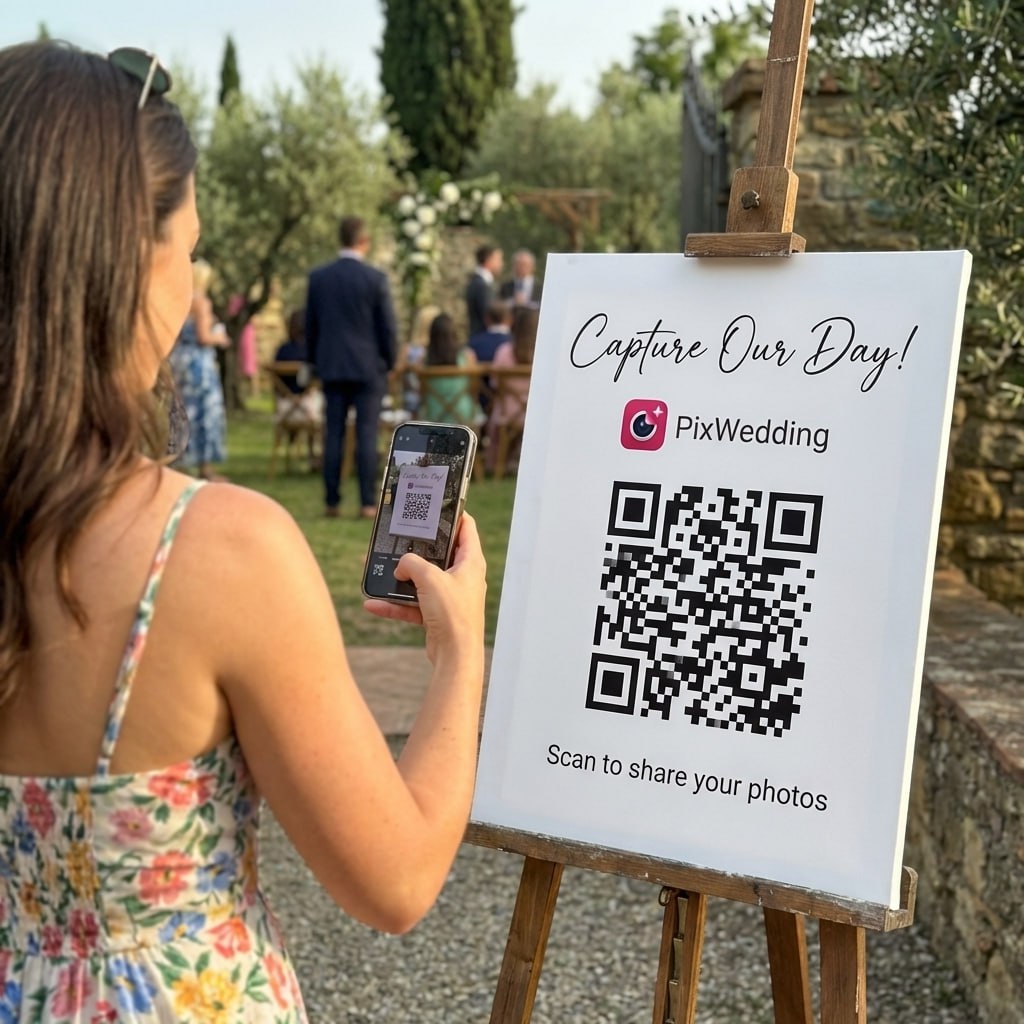
Google Sheets is great for budgets and guests, but it will not collect wedding photos from phones. Pix Wedding gives you the QR album piece.

From Mom
Scan to join the album
No app, no account
UPLOADING
Saving your moment
THE ALBUM
Emma & Jack
June 21, 2026
647 photos · 95 guests







SCAN TO TRY
pix.wedding/
your-wedding
5 Google Sheets Errors Couples Make and How to Fix Them
A dashboard that reads "Confirmed guests: 0" the week invitations go out is almost never a real problem, it is usually a stray space after "Yes" in row 214 or a deleted column that broke a =SUM range. Here are the five errors that show up most often in shared wedding workbooks, and the two-minute fix for each.
#REF! in Dashboard formulasCause: You deleted a row or column that a formula was referencing
Fix: Undo with Ctrl+Z. Or click the cell showing #REF! and look at the formula bar to find what range is missing. Fix the range reference.
COUNTIF returns 0 when you know there are Yes entriesCause: RSVP entries have stray spaces or variants like " Yes", "Y" or "Confirmed". COUNTIF ignores capitalisation, so "YES" still counts, but " Yes" with a leading space does not
Fix: Use =COUNTIF(D:D,"*yes*") so the asterisk wildcards catch stray spaces, or enforce dropdowns via data validation to prevent variants.
Sum totals are wrong in the Budget tabCause: Some cost cells contain text-formatted numbers (imported from email or PDF) that look like numbers but are not
Fix: Click the small warning icon Sheets shows on the affected cell and choose "Convert to number", or force it with a helper column formula: =D2*1.
Two people overwrote each others editsCause: Version history was not checked before editing
Fix: Use File > Version history to identify and restore the overwritten content. Going forward, use the comment-tag feature to coordinate before editing shared sections.
Conditional formatting stopped working after adding rowsCause: The formatting range does not extend to new rows
Fix: Go to Format > Conditional formatting. Check the "Apply to range" field. Change it from D2:D50 to D2:D1000 to cover future rows.
6 Google Sheets Habits That Keep Your Wedding Planner Organised
Related Templates and Tools
Using Version History to Protect Your Wedding Data
Google Sheets keeps a full version history of every change ever made. This is your safety net when a collaborator accidentally deletes rows or overwrites important data.
How to view version history
File > Version history > See version history. A panel opens showing every save point. Click any version to see the spreadsheet exactly as it was at that moment. Named versions are easier to navigate.
Name important versions
Before making major changes (like finalising the seating chart), go to File > Version history > Name current version. Name it "Seating Chart Final 2026-06-01". You can return to this exact state at any time.
Restore a previous version
Click the three-dot menu next to any version in the history panel and choose "Restore this version". The spreadsheet returns to that exact state. The restored version also appears in version history, so nothing is ever permanently lost.
See who made each change
Version history shows the name and avatar of each collaborator who made changes. Click any change to see exactly which cells were edited and what the previous values were. Useful for tracking down accidental guest list deletions.
Month-by-Month Spreadsheet Milestones
Your Google Sheets planner evolves over 12-18 months. Here is when to build each component and what data to start entering.
Set up all six tabs, column headers, data validation dropdowns, and frozen header rows. Share with your partner as Editor.
Enter total budget and category allocations. Add all 12-18 month tasks to the Checklist tab with due dates.
Add all guests with name, email, and which side they are on. Sort by family groups. Share with parents for their additions.
As vendors are booked, populate the Vendors tab with contract details and payment schedule. Update Budget tab with actual quotes.
Use data validation to update RSVP status as replies arrive. Meal choice and dietary columns become active.
After RSVP deadline, build the Seating Chart tab. Cross-reference guest list for meal choices and dietary needs per table.
Freeze all tabs. Export and print final versions of the timeline, seating chart, and vendor contacts. Switch to binder mode.
Google Sheets vs. Excel: The Collaboration Difference
The single biggest advantage Google Sheets has over Excel for wedding planning is real-time collaboration. When your partner updates the guest list from their laptop at the same time you are adding vendors on your phone, both changes appear instantly. Excel can do this too through co-authoring, but only when the workbook is saved in OneDrive or SharePoint, so couples who default to emailing an .xlsx file never see it.
Sharing with family is also fundamentally different. In Google Sheets, sharing is always a link and a permission level. With Excel, many families still share by emailing a file, which immediately creates version confusion. For a project that involves a partner, parents, a planner, and possibly a wedding party coordinator, the Google Sheets model is simply more practical.
The formulas are essentially identical. SUMIF, COUNTIF, VLOOKUP, COUNTIFS, conditional formatting, data validation dropdowns. Anything you can do in Excel for wedding planning, you can do in Google Sheets for free.
- •Real-time co-editing: multiple people can work simultaneously
- •Link-based sharing: no file attachments, no version conflicts
- •Free: no subscription required, while desktop Excel comes with Microsoft 365
- •Mobile app: full editing capability on iOS and Android
- •Version history: see every change made and by whom, revert if needed
When Google Sheets is Not Enough
Google Sheets works well for static data (budgets, lists, schedules) but falls short for interactive features. It cannot generate a QR code for guest photo sharing. It cannot send RSVP collection emails. It does not remind you when a task is overdue unless you set up a Google Apps Script, which requires coding knowledge.
For couples who want the organisation of a spreadsheet plus interactive features, the best approach is to use Google Sheets for data storage and Pix Wedding's free tools for the interactive tasks: the Checklist tool for guided task management, the Budget Allocator for category budgeting, and the Guest List Manager for RSVP collection and tracking.
Explore more free wedding tools
Everything you need to make your wedding day stress-free and unforgettable.
QR Sticker Designer
Design custom print-ready stickers.
Hashtag Generator
Create unique wedding hashtags.
How to Collect Guest Photos
5 methods ranked by participation rate and ease.
Share Wedding Photos with Guests
Compare every sharing platform by ease and participation.
Best Way to Get Guest Photos
The single method with the highest participation rate.
How to Make a Shared Wedding Album
Step-by-step setup for every platform.
Alternative to Disposable Cameras
Better, cheaper options than disposable cameras.
Alternative to Wedding Photo Booth
5 cheaper alternatives to a $1,000+ photo booth rental.
Google Sheet Wedding Planner: FAQs
Straight answers to the questions people ask most about this topic.
Go to sheets.google.com and create a new blank spreadsheet. Rename it "Wedding Planner [Your Names]". Create tabs by clicking the + icon at the bottom: Dashboard, Budget, Guest List, Checklist, Vendors, Seating Chart. On each tab, add column headers in row 1 and freeze that row (View > Freeze > 1 row) so headers stay visible when you scroll. Share via the Share button in the top right.
Click the Share button in the top right. For your partner, enter their email and choose "Editor" access. For family members helping with the guest list, use "Editor" for one section or "Commenter" if you only want them to add notes. For vendors who need to view the timeline, share the link with "Viewer" access. You can protect individual sheets (right-click the tab > Protect Sheet) so collaborators only edit what they are responsible for.
A well-structured wedding planner in Google Sheets needs: Dashboard (summary numbers), Budget (itemised costs), Guest List (RSVP database), Checklist (month-by-month tasks), Vendors (contacts and contracts), and Seating Chart (table assignments). Seven or eight tabs is the practical limit before navigation becomes cumbersome.
Yes. The Google Sheets mobile app (iOS and Android) is free and syncs in real time. All formulas work, you can add rows to the guest list, update RSVP status, and check off tasks. The mobile experience is best for updates and viewing; major setup and formatting is easier on a desktop browser.
Right-click the tab you want to protect and choose "Protect Sheet". In the panel that appears, click "Set permissions" and choose "Only you" or add specific emails for who can edit. Anyone with viewer or commenter access can still see the sheet but cannot edit it. Use this for the budget tab when sharing with family members who only need the guest list.
For most couples, yes. Google Sheets is free, requires no software installation, shares via link, syncs automatically, and is accessible on any device. Excel for the web is also free with a Microsoft account, and live co-editing works when the file is saved in OneDrive or SharePoint, but desktop Excel comes with a Microsoft 365 subscription. Emailing an Excel file back and forth is what creates version conflicts, so pick one shared cloud file whichever app you use. The formulas are nearly identical, so there is no functional trade-off for wedding planning specifically.