
Wedding Photo Recap Video From Guest Photos: How to Build One in a Weekend
You have 300 guest photos sitting in your album. Here is how to turn them into a two-minute recap video with a proper narrative arc, legally licensed music, and the right editor for your skill level.
To make a wedding recap video from guest photos: export your album from Pix Wedding as a sorted ZIP, cull to 40-60 best photos, import into CapCut or iMovie, add a licensed track from Epidemic Sound, apply beat-sync transitions, export at 1080p, and share via link.
Total time: 2-3 hours. Total cost: $0 if you already have iMovie, or $15 for one month of Epidemic Sound music.
From exported album to finished video: the seven-step process
We walked through this on a real 130-guest wedding album the Sunday after the reception. These steps are in the order they actually need to happen.
- 1
Export the full album from Pix Wedding
Log into your dashboard, open the album, and click "Download All." The export is a ZIP file organized by moment (ceremony, cocktail hour, reception) so you do not have to sort anything yourself. Unzip it into a dedicated folder on your desktop. Rename the folder with the wedding date so you can find it in six months.
- 2
Cull down to 40-60 photos before touching any editor
Open the folder in your operating system photo viewer and mark keepers with a star or move them to a "picks" subfolder. Remove: blurry frames, photos where everyone's eyes are closed, extreme duplicates (five guests shot the same toast from the same angle, keep the sharpest one), any dark or blown-out shots. Your target is 40 photos for a two-minute video and 60 for a three-minute video. Culling before you open the editor saves more time than any other step.
- 3
License your track before you open the editor
Go to Epidemic Sound, search the song or browse the "Romantic" and "Cinematic" categories, download the track, and save it in your project folder. Doing this before you start editing means you can let the beat guide your cut timing instead of forcing cuts onto a track you picked at the end. The license covers Instagram, YouTube, TikTok, and Facebook without a claim.
- 4
Import photos into your chosen editor and arrange by arc
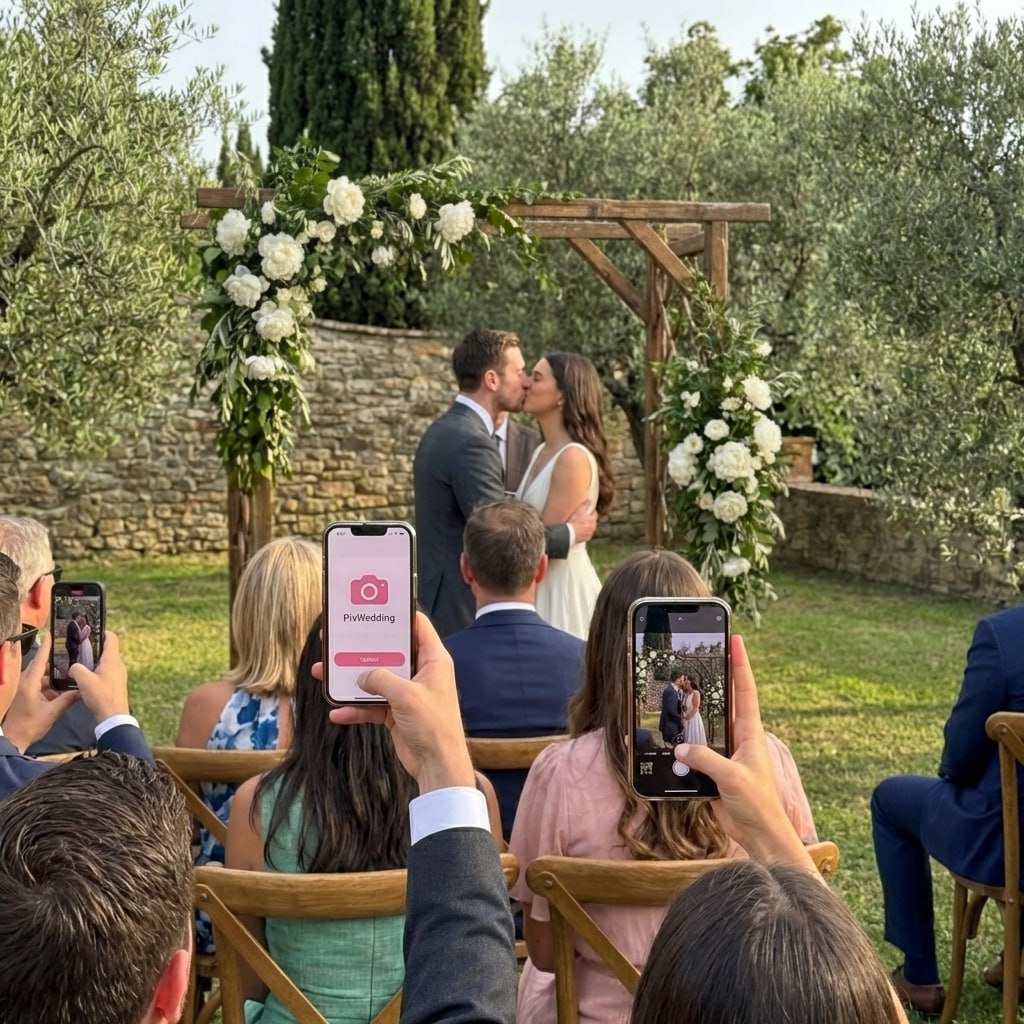
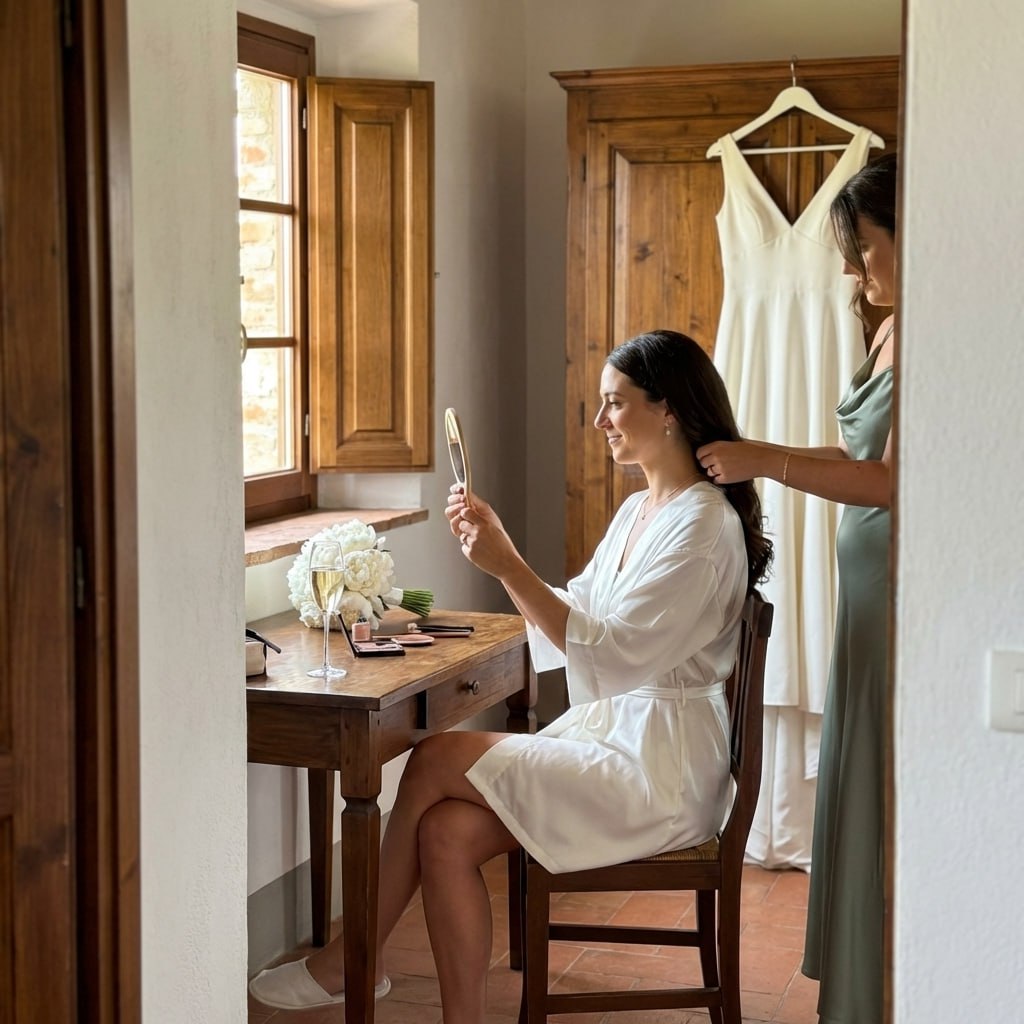
Drag the picks folder into CapCut, iMovie, or Adobe Express. Arrange in roughly chronological order but prioritize emotional weight over strict time sequence. Detail shots first (rings, flowers, table settings), then getting-ready, then ceremony, then cocktail and reception candids, then dancing, then a quiet closing image. This arc matches how people remember the day, not how the clock moved.
- 5
Add the music and sync cuts to the beat
Import your licensed track. In CapCut, tap "Auto Beat" and the app places cut markers on the waveform for you. In iMovie, use the waveform at the bottom to manually trim each photo to the nearest beat. The goal is for photos to change on a downbeat, not mid-phrase. A three-second hold on the first kiss is fine to let the emotion breathe. The verse can be faster cuts. The chorus can hold longer on wider group shots.
- 6
Export at 1080p, not 4K
4K export files run 400-800 MB for a two-minute video and will not play back smoothly on older phones. 1080p at standard bitrate produces a 60-120 MB file that streams fast, looks sharp on every screen from iPhone to 75-inch TV, and uploads to Google Drive or Dropbox in under two minutes. Export once. Do not re-export four times trying to fix tiny issues you notice in the preview.
- 7
Share back to guests via a link, not a download
Upload the video to Google Drive, YouTube (unlisted), or Vimeo (private with password). Share the link, not the file. Texting a 100 MB MP4 to 40 people clogs inboxes and breaks group chats. A link plays instantly on any device. In the share message, name three or four guests whose photos appeared in the video. "Aunt Maria's cocktail hour shot made the cut" gets more replies than a generic "here's our recap."
iMovie vs CapCut vs Adobe Express for a guest photo recap
Three free editors, three different trade-offs. Here is which one fits your situation.
iMovie (Mac, free)
Best for: Mac users who want manual control and plan to spend 2-3 hours on the edit. Learning curve: low to medium. Beat-sync: manual only. Export quality: 1080p or 4K. Templates: limited. Watermark: none. Bottom line: the most reliable free option for a polished result, but requires you to time every cut yourself. If you have an afternoon and a Mac, this is the call.
CapCut (iOS, Android, web, free)
Best for: editing on your phone the day after the wedding, fast results, anyone who wants to be done in 45 minutes. Learning curve: very low. Beat-sync: built-in auto beat feature. Export quality: 1080p free, 4K behind paywall. Templates: 50+ wedding templates. Watermark: removable for free. Bottom line: fastest path from guest photos to a shareable video. The auto beat-sync alone saves an hour.
Adobe Express (browser-based, free tier available)
Best for: couples who want a polished template-driven video without downloading software. Learning curve: very low. Beat-sync: template handles pacing automatically. Export quality: 1080p on free tier. Templates: strong wedding-specific templates with title cards and transitions. Watermark: present on free tier. Bottom line: great if you want the result to look designed rather than edited, and do not mind a subtle Adobe branding on the free version. Upgrade is $9.99 per month to remove it.
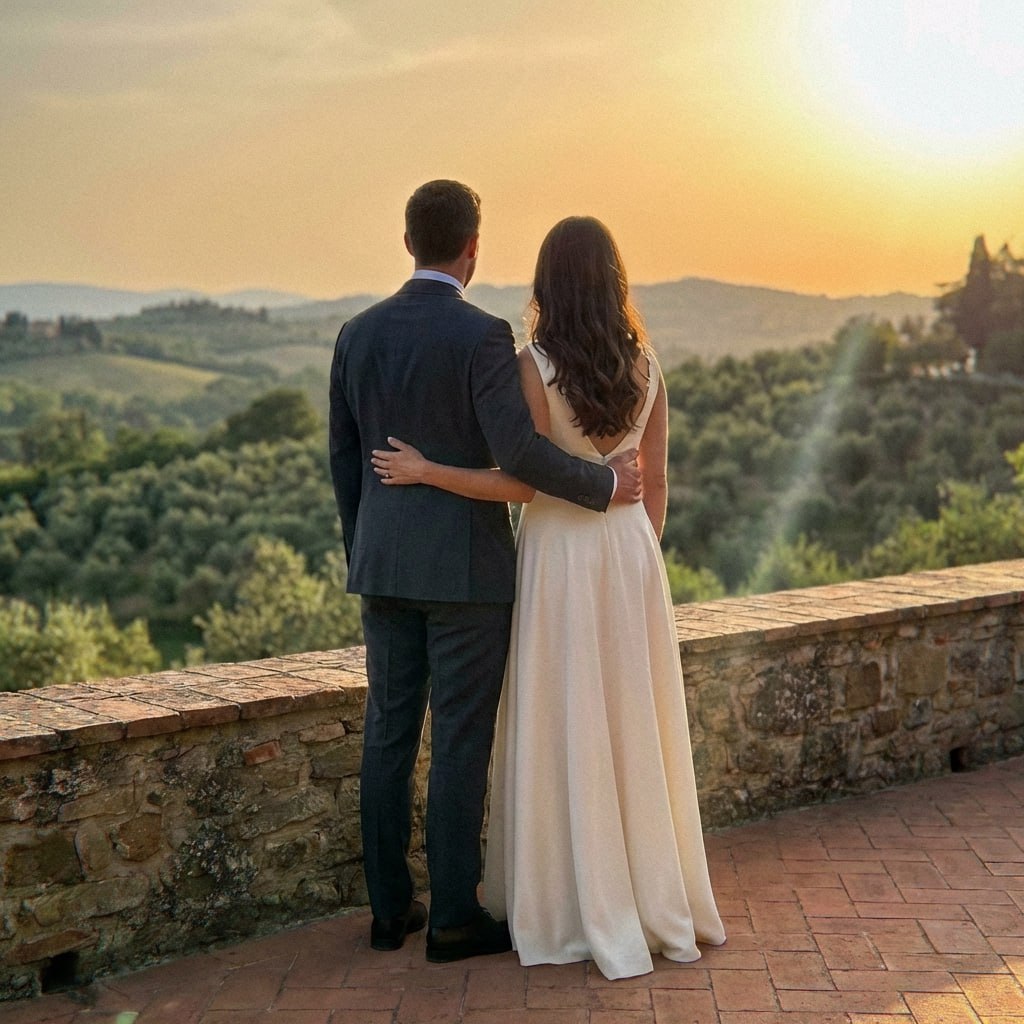
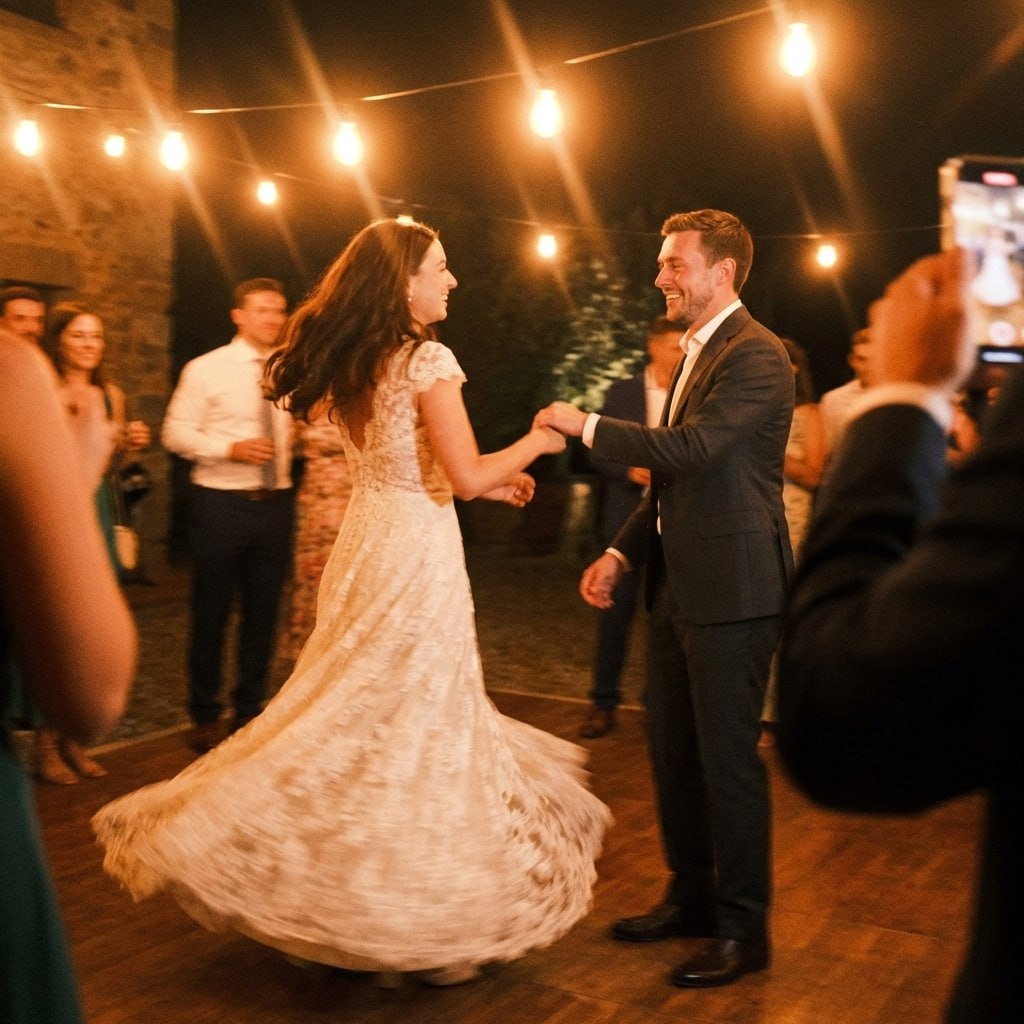
First dance candid
From Aunt Rena's phone
Collect guest photos that are ready to edit the day after the wedding
Pix Wedding exports your entire guest album as a sorted ZIP, organized by moment, in one click. No texting guests for files. No hunting through Google Drive shared links. Just download and start editing.
Jamie M.
Scan to join the album
No app, no account
UPLOADING
Saving your moment
THE ALBUM
Emma & Jack
June 21, 2026
647 photos · 95 guests
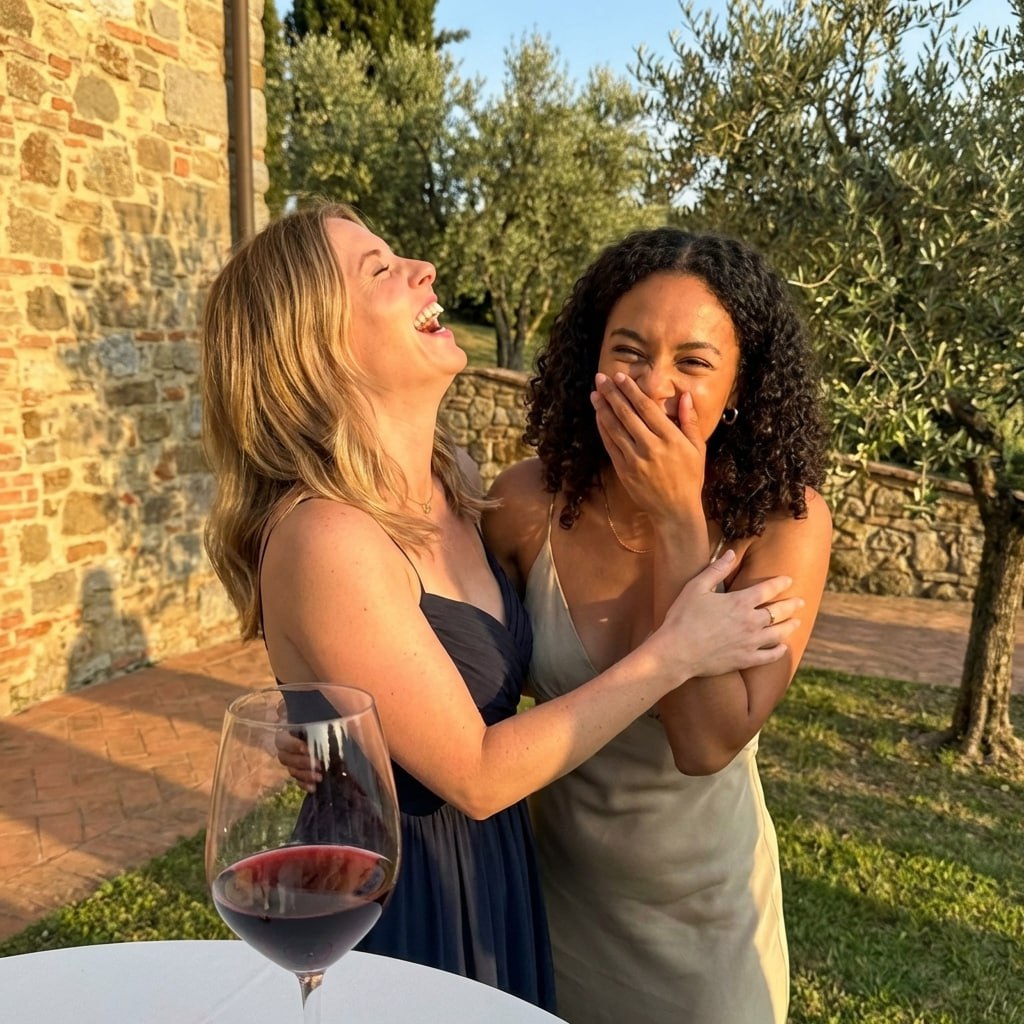
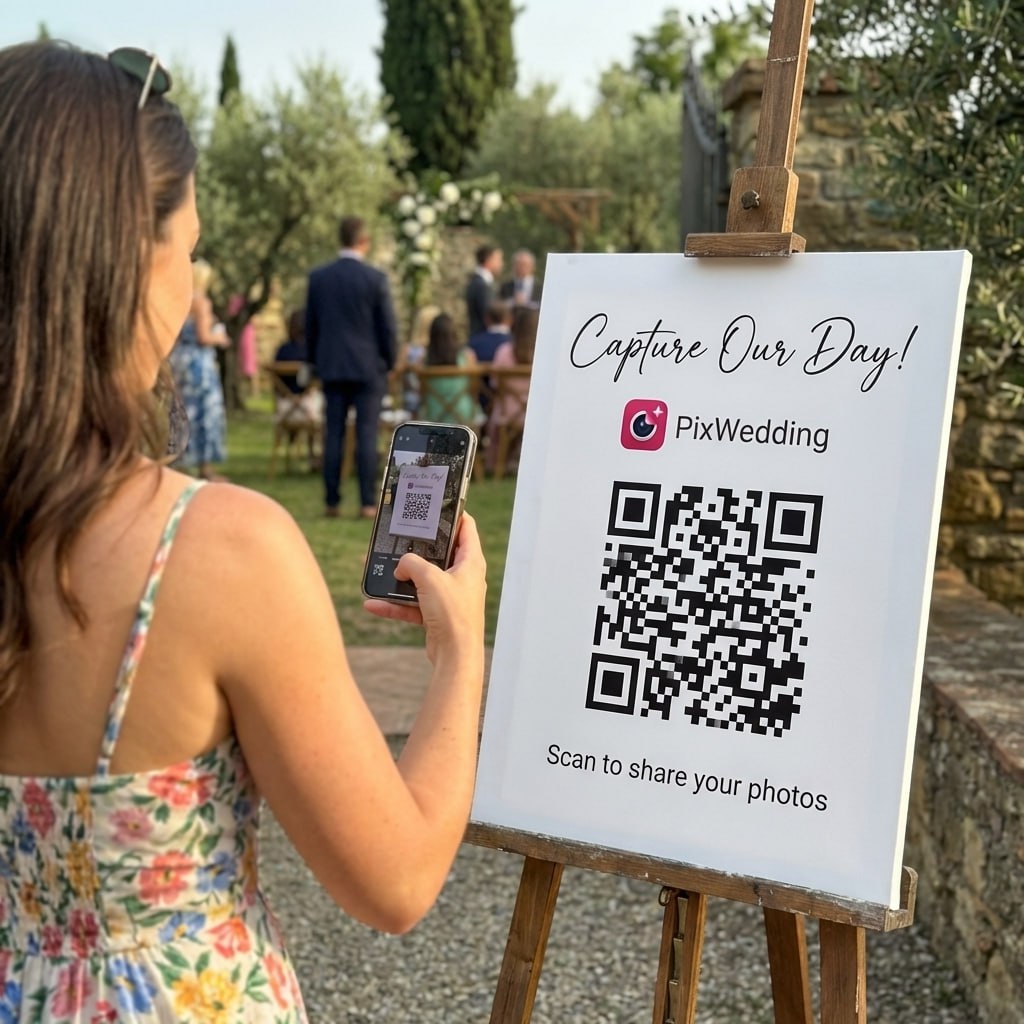
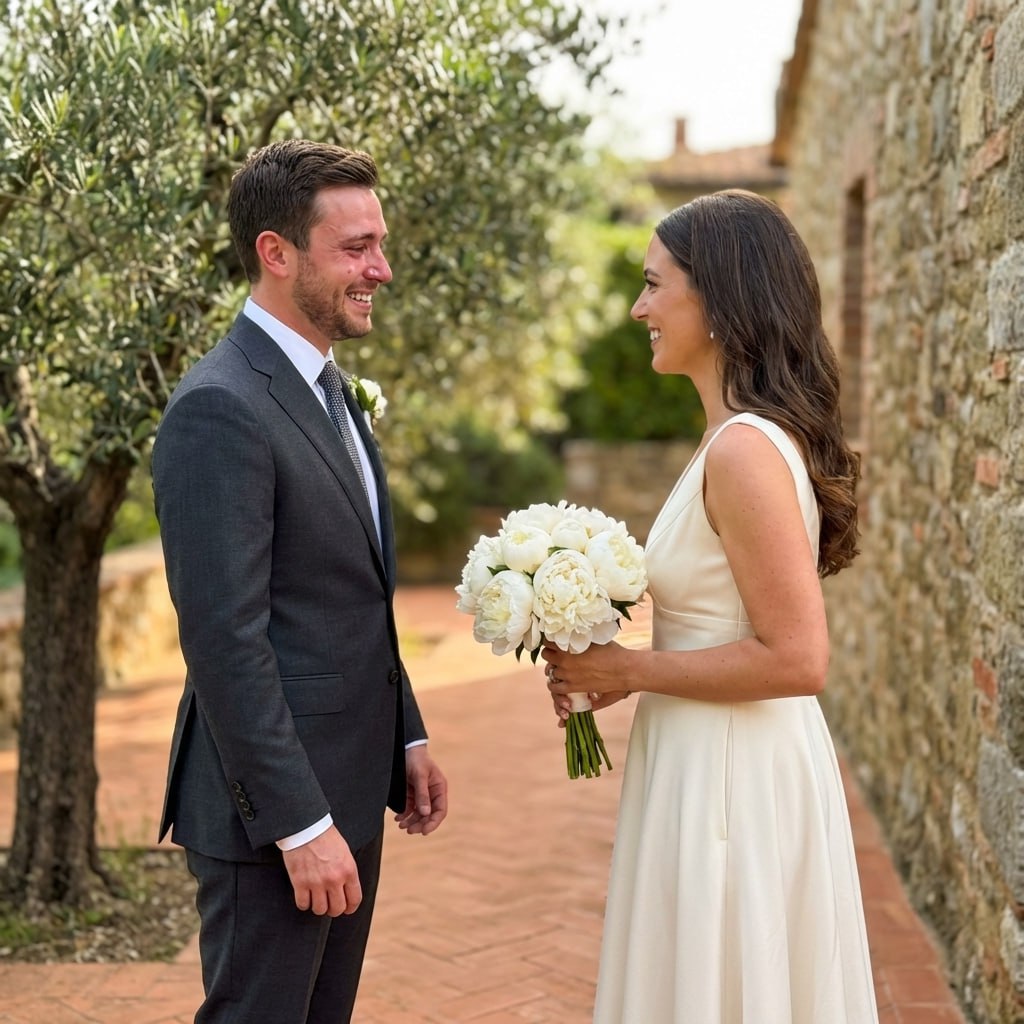
SCAN TO TRY
pix.wedding/
your-wedding
The five-act narrative arc that makes guest photo videos feel like real films
Chronological order is not the same as narrative order. This arc has held up on every recap video we have assembled from guest photo collections.
0:00 - 0:20 Detail shots (flowers, rings, shoes, table settings, place cards)
Guests photograph details before they photograph people. You will have 20-40 of these. Use the five or six best as your opening. They establish atmosphere without putting anyone on screen. The music's first verse usually covers this perfectly. Hold each for 3 seconds.
0:20 - 0:50 Getting-ready candids, arrival moments, guests finding their seats
Pre-ceremony photos give the video a sense of time passing and anticipation building. Include one wide shot of the empty venue or ceremony space if a guest captured it. End this act with the moment just before the processional starts.
0:50 - 1:30 Ceremony moments: vows, ring exchange, the kiss, reactions
This is the emotional center. Use the kiss or ring exchange as your single longest hold, 4-5 seconds. Guest photos often catch reaction faces during the vows that professional shots miss entirely because the photographer was focused on the couple. Include two or three reaction faces here, they hit harder than another angle on the couple.
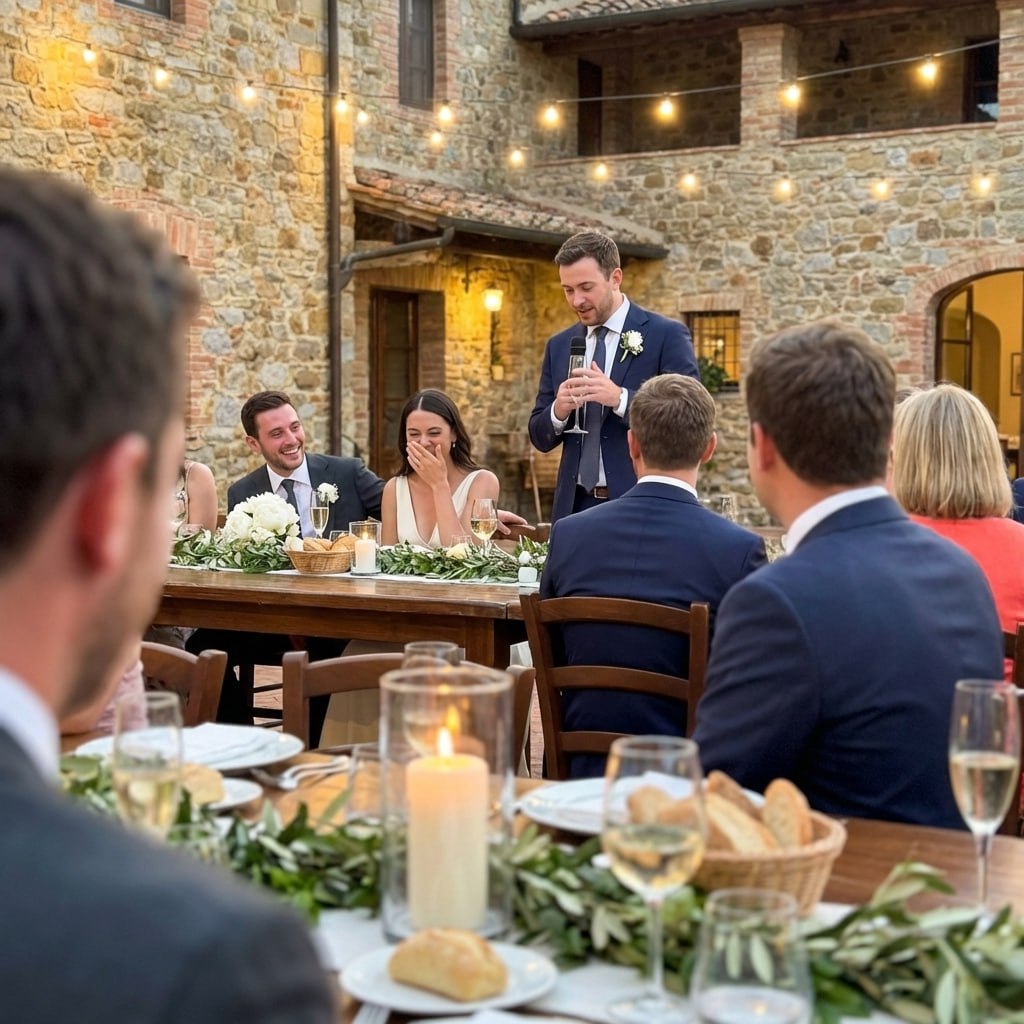
1:30 - 2:20 Reception: toasts, dancing, food, group photos, candid joy
The most photos live here. Keep the pace faster, 2-2.5 seconds per image. Mix close-up faces with wide crowd shots. Cut faster during the chorus. If you have a photo of the couple looking at the slideshow screen during the reception, this is where it goes. Include at least two or three guests other than the couple, this is their memory too.
2:20 - 2:45 One quiet image, names and date, optional message to guests
End on stillness. A wide shot of the venue at night, the couple walking away, or a single candle from the centerpieces. Hold for 4-5 seconds as the music fades. If your editor supports a text layer, add the couple's names and the date. Optionally add "Thank you for being part of our day." in a clean serif font. Fade to black.
Music licensing for wedding recap videos: what you actually need to know
This is the section most DIY guides skip. It is the one that decides whether your video survives two years on YouTube or gets muted the day you post it.
Epidemic Sound
$15 per month, cancel anytime. Every track is pre-cleared for Instagram, YouTube, TikTok, Facebook, and Vimeo. You can download tracks during your subscription month, cancel, and the license for downloaded tracks stays valid forever. Best approach: subscribe, download 5-10 tracks, pick your favorite, cancel. Total cost: $15.
Best overall valuePixabay Music
Free, no account required. Tracks are released under a Pixabay license that covers personal and commercial use without attribution. Quality is uneven but the cinematic and romantic categories have solid options. Best for: private links shared with family, or any video you will not post publicly on a monitored platform.
Best free optionYouTube Audio Library
Free tracks available through YouTube Studio. License covers use on YouTube, but coverage on Instagram and TikTok varies by track. Check the track's listed usage terms before committing. Best for: videos posted exclusively on YouTube where you already have a channel and want zero license overhead.
Best for YouTube-onlyWhat will get you claimed or muted immediately
- Spotify tracks added directly from a recording: claimed within hours on Instagram and YouTube.
- Apple Music downloaded tracks: DRM-protected, and the underlying copyright is still held by the label.
- Live DJ mixes or sets from the reception: every track in the mix triggers a separate claim.
- "It's a personal wedding video so it's fine": copyright systems are automated and do not care about the context of your use.
The right video length for each audience and platform
Longer is not better. The length should match the relationship between the viewer and the couple.
60-90 seconds, vertical 9:16 crop
Fastest cuts, most energy, open with the kiss or a dancing moment within the first 2 seconds. This version is for discovery, not depth. You will get comments from guests and their friends.
2-3 minutes, 16:9 or 1:1
This is the primary version. Full narrative arc from detail shots to closing. Send via Google Drive link or YouTube unlisted to everyone on the guest list within the first week. This is the one that gets forwarded and talked about at the office on Monday.
4-6 minutes, include more family moments
For parents, grandparents, and siblings who want to see more of the ceremony and extended family candids. Include the full toast and more slow holds. Not for social posting. Share as a private Vimeo link with password.
8-12 minutes, every selected photo
A comprehensive version saved to a hard drive or cloud backup. Not for sharing publicly. The couple watches this in five years. Include every strong photo even if the pacing is slow. This is the archive, not the performance.
Danielle and Marcus: CapCut recap built the Sunday after the reception
Danielle and Marcus got married on a Saturday in mid-September 2025 at a converted timber-frame barn outside Rhinebeck, NY. The venue had exposed beams, Edison-bulb string lights, and a gravel outdoor cocktail space with a view of the Catskills. 118 guests attended. They had set up Pix Wedding with a QR code on a small acrylic stand at the entry and two table tents per round table. By the time the last guests left at 11:40 PM, the album had 312 photos and 14 voice messages.
The following Sunday at 9:15 AM, Danielle opened the Pix Wedding dashboard on her MacBook Air M2. She clicked "Download All." The ZIP arrived in 4 minutes and unpacked into three subfolders: 44 ceremony photos, 91 cocktail hour photos, 177 reception photos. She opened each folder in macOS Quick Look and spent 38 minutes pulling keepers. Her rule: any photo where someone was mid-blink, held a fork near their mouth, or where three near-identical frames existed from the same moment, one went into the picks folder. She ended up with 54 selected photos.
She opened CapCut on the laptop (desktop version, free tier). Before touching the photos, she went to Epidemic Sound and subscribed for $15. She spent 22 minutes in the "Romantic Acoustic" category and downloaded three tracks. The one she picked was a fingerpicked guitar piece with a tempo around 72 BPM, long enough at 3:18 to cover her target video length with room to fade. She saved the MP3 into the project folder, then dragged all 54 photos into CapCut. She tapped "Auto Beat" and let the app place initial cut markers on the waveform.
The auto sync got about 70 percent right. She then spent 45 minutes adjusting manually: the ring exchange she extended to 4.5 seconds because Marcus's hands were visibly shaking and she wanted viewers to sit with that. The dancing section she tightened to 1.8 seconds per frame. One shot, taken from behind the DJ booth by Marcus's college roommate, showed the couple during their first dance with the whole crowd circled around them lit from below by phone flashlights. She held that one for 5 seconds and placed it at the 2:00 mark as the track hit its final chorus.
She also included a still frame of Marcus's late grandfather, pulled from a framed photo on the memory table that a guest had photographed. It appeared at the 0:48 mark during the pre-ceremony section. That single frame was the moment Danielle said made her cry during the preview.
What failed: CapCut crashed twice during the beat-sync adjustment, losing about 12 minutes of manual cut changes the second time. She had not saved a project checkpoint. After the second crash she saved manually every 10 minutes. The lesson was simple: CapCut's desktop app autosave is unreliable with large photo counts. Save the project file after every major adjustment, not just before export.
She exported at 1080p. The file came out at 81 MB and took 3 minutes to render. She uploaded it to YouTube as unlisted and sent the link to 118 email addresses that Sunday at 6:45 PM with a note that named three guests whose photos made the final cut. By Tuesday morning she had 47 comments, 9 private messages from guests asking for full-resolution downloads of specific frames, and Marcus's mother reported watching it 8 times. Total cost: $15 for the Epidemic Sound subscription, cancelled Monday. Edit time start to finish: 2 hours 22 minutes. Final video length: 2 minutes 41 seconds.
Lessons: Save CapCut project checkpoints manually every 10 minutes. Do the music search before you open the editor so the tempo is in your head while you arrange photos. Name three to four specific guests in the share message. It triples the reply rate.
Priya and Jonah: iMovie recap with a longer family cut, October 2024
Priya and Jonah married on a Friday afternoon in mid-October 2024 at a vineyard estate in Healdsburg, CA, in the Sonoma wine country. The ceremony was held outdoors between two rows of old-growth merlot vines; the reception moved into a barrel room with stone walls and candlelit tables for 84 guests. Pix Wedding QR codes were on the ceremony programs and on each barrel-top cocktail table. By midnight the album held 247 photos and 9 voice messages.
Jonah took the edit. He is a graphic designer and comfortable with software but had never made a photo slideshow video before. He chose iMovie on his 2022 MacBook Pro over CapCut because he wanted manual control over every cut rather than relying on auto beat-sync. He downloaded the album on the Sunday, two days after the Friday wedding. The ZIP unpacked into 37 ceremony frames, 78 cocktail frames, and 132 reception frames. Culling took him 28 minutes. He selected 61 photos: the higher count was intentional because he planned to make two versions, a 2:45 guest version and a 5:20 family version.
For music, he chose a track called "Still" by an independent artist on Artlist. He had an annual Artlist subscription already ($16.60 per month billed annually) from his design work, so the music cost him nothing incremental. The track is a slow-build piano piece at 58 BPM with a tempo change into a fuller string arrangement at the 2:00 mark. He wanted that tempo change to land exactly on the transition from ceremony to reception in the video. He spent 15 minutes in iMovie's waveform view aligning that one cut precisely.
The narrative arc he built: six detail shots (wine glasses, vineyard rows at golden hour, the ceremony arch with hanging eucalyptus), then four getting-ready candids including one of Priya's grandmother adjusting her dupatta in a side mirror, then the processional walk between the vine rows, the vows, the ring exchange held at 5 seconds, two reaction faces from Jonah's parents in the front row, cocktail hour candids, the best man's toast (still photo of him holding the mic, crowd laughing behind him), dancing, and finally a single wide shot of the vineyard after dark with just the barrel room lights visible through the open doors.
What failed: iMovie on macOS Sonoma had a known rendering bug at the time where cross-dissolve transitions between portrait-oriented photos sometimes produced a half-second black flash. Jonah noticed it on export review and spent 40 minutes hunting the cause. The fix was switching all portrait-to-portrait transitions from "cross dissolve" to "fade to black" (which masked the glitch visually). Three transitions he left as straight cuts instead. He lost an hour to that bug and would not have caught it if he had not watched the export at full screen on a TV before sending.
The guest version (2:45, 1080p, 68 MB) went out via a private Vimeo link with password on Sunday evening, 9 days after the wedding. The family version (5:22, 1080p, 148 MB) went out as a separate Vimeo link to 14 family members with a different password, including the longer toast sequence and four additional frames of extended family. Priya's grandmother watched the family version on a tablet her daughter held for her. She does not speak much English but recognized the dupatta adjustment frame and pointed at the screen. That moment was reported back to Priya by text that evening.
Cost breakdown: Artlist subscription already owned ($0 incremental), Vimeo free tier (2 video limit, both versions fit), iMovie already on the Mac ($0), total cash cost: $0. Time invested: culling 28 minutes, music selection 15 minutes, iMovie edit 3 hours 10 minutes, bug fix and re-export 55 minutes, total approximately 4 hours 48 minutes across two sessions.
Lessons: Watch the full export on a large screen before sending it anywhere. iMovie's preview window is small enough to hide transition glitches. Making two versions (guest and family) from the same cull pool is efficient: select your 61 picks once, use 45 in the short version and all 61 in the long version. The incremental time for the second version was only 55 minutes because the base sequence was already built. Two audiences, two videos, one afternoon of work.
Six mistakes that make a guest photo recap video hard to watch
- Including every photo without culling. A 300-photo slideshow at 3 seconds per photo is 15 minutes. No one watches a 15-minute video, including the couple.
- Strict chronological order. Chronological feels like a report. Narrative order with a five-act arc feels like a story. Start with details, not the 8 AM getting-ready shot.
- Using the first music track you think of. The track sets the entire emotional tone. Spend 20 minutes on this. Download three options and watch your rough cut with each one before deciding.
- All couple photos, no guest faces. Guest faces in the video are what make guests share it. If every frame is the couple, only the couple cares deeply. Include candid guest moments.
- Over-using transitions. One simple cross-dissolve or a straight cut is better than 47 different swipe, spin, and bounce effects. Fancy transitions call attention to themselves.
- Waiting too long to send it. The recap loses 60% of its emotional impact after two weeks. Send it within the first week. Imperfect and timely beats polished and late.
When to add title cards and text overlays, and when to skip them
Text overlays can add context. They can also add clutter. Here is the short rule set that has held up across every recap we have helped assemble.
Use text here
- Opening title: couple names and date, first 3 seconds, simple white serif on a dark frame or full-bleed photo. Tells viewers what this is immediately.
- Section transitions: a single word like "Ceremony" or "Cocktail Hour" held for 1.5 seconds before a new section. Helps viewers orient in time without narration.
- Closing slide: "Thank you for celebrating with us" or the couple's names in a clean font. Gives the video a formal ending before the share message.
Skip text here
- Captions on every photo: they compete with the image and slow the pacing. If a photo needs a caption to make sense, find a better photo.
- Guest name tags: identifying who is in each shot as a text overlay clutters the edit and the guests will recognize themselves.
- Lyrics from the song: covers the photos you spent time selecting. The music is the audio layer. The photos are the visual layer. Do not merge them.
Font rule
One font family in the whole video. Mixing three script fonts because each looked nice in isolation produces visual chaos. Pick a clean serif (like Playfair Display or Cormorant) or a clean sans-serif (like Inter or Lato) and use it for every text element. In CapCut and Adobe Express, stick to the template's default fonts and you will automatically avoid this problem.
The 10-point checklist before you share the recap link with guests
Watch it once on a phone before sending. These are the ten things that have caught problems before 40 guests saw them.
Music plays through the full video
The track sometimes cuts off early if the export duration was trimmed accidentally. Play the last 15 seconds to confirm.
No blurry or dark frames made it through the final cut
These are easy to miss in the editor at small preview size. Full-screen playback on a phone catches them.
Opening and closing titles are spelled correctly
Misspelled names on the opening title card land differently than a typo in a text. Read each title frame aloud.
The share link is set to "anyone with the link" not "private"
On Google Drive and YouTube unlisted, double-check the link settings. Guests who receive the link should be able to play it without requesting access.
Test the link on a phone different from the one you edited on
What plays back correctly on your MacBook may buffer on an older Android. Test on one other device before mass sending.
No music claims or mutes flagged if using YouTube
After uploading to YouTube, wait 10-15 minutes and check the Video Manager for a "Copyright Claim" notice before sending the link out.
The video is named, not just a random export filename
Rename the upload to "Danielle and Marcus Wedding Recap 2026" so it reads clearly in any browser tab or download prompt.
Your share message names a few guests whose photos are in the video
"Jamie and Priya, your cocktail hour shots made it in" gets 3x more replies than a generic "here's our recap video" broadcast.
You have a local backup of the full export
Cloud platforms change policies. Copy the final MP4 to a hard drive or second cloud storage before sending the link. This video is not replaceable.
You are actually ready to send it
The biggest risk is waiting until it is "perfect." Once you have watched it through once on a phone and it made you feel something, it is ready. Send it.
Related guides in the photo collection and display flow
The recap video is the last step. These cover everything that comes before it.
Why guest photos make a better recap video than you expect
Professional wedding photos are beautiful but they are one perspective: the hired photographer moving through the room. Guest photos are raw and multi-perspective. You get the cousin who caught the groom tearing up during the vows from the third row. You get the table of college friends who spent the cocktail hour roaring over old photos on someone's phone. You get the candid of the flower girl asleep under a chair at 9 PM.
When we put together the first guest-photo recap video from a 130-guest wedding, the couple kept stopping the playback to point at moments their professional photos had missed entirely. The pro photographer was shooting the first dance from the front. A guest caught it from behind the DJ booth at an angle nobody planned. That frame ended up being the thumbnail for the recap.
- •Guest photos give you 200 to 400 frames across 6 to 8 hours versus a photographer's curated 500 to 700
- •Perspective variety is built in because 30 to 50 different phones shot from 30 to 50 positions
- •Candid emotional moments appear more often because guests are not posing anyone
- •The video feels personal to guests who contributed because their frame might appear
- •Collection takes minutes with a QR album instead of texting 40 people individually
Music licensing 101 for wedding recap videos
The most common mistake couples make is adding a meaningful song to their recap video and then watching the video get muted the moment it hits Instagram. Music rights for video are called sync rights, and they are separate from the rights you get when you stream a song on Spotify or Apple Music. A stream license is for listening. A sync license is for pairing audio to moving images.
For wedding recap videos shared on social media, the three safest routes are: Epidemic Sound (roughly $15 per month, covers all platforms, you can cancel after one month), Artlist (annual subscription but a broader catalog), or royalty-free tracks from Pixabay Music for private non-monetized shares where you are less worried about a claim. If the song is deeply personal to the couple, a direct license from the publisher is possible but costs $150 to $500 for a one-time personal use, takes several weeks, and is not worth it for most recap videos.
- •Epidemic Sound: best value at $15 per month, cancel after one video
- •Artlist: annual subscription, larger catalog, good if you make videos regularly
- •Pixabay Music and Free Music Archive: free for personal non-commercial use
- •YouTube Audio Library: free tracks cleared for use on YouTube
- •Direct publisher license: expensive, slow, only worth it for highly personal songs
Setting realistic expectations for the first weekend edit
The first weekend after the wedding you will be exhausted and still processing. The goal is not a polished short film. The goal is a watchable two-to-three-minute video you can send to family while the emotions are still fresh. Imperfect timing, simple transitions, and a track from Epidemic Sound beats a four-month wait for something perfect.
Set a time limit: two to three hours on a Sunday afternoon. Use that time to export from Pix Wedding, cull to 40 to 60 photos, drop them into CapCut or iMovie, pick one track, use the automatic beat-sync if available, export, and send. You can refine it later. The version you send the week after the wedding will get far more views than the version you agonize over for a month.
Explore more free wedding tools
Everything you need to make your wedding day stress-free and unforgettable.
QR Sticker Designer
Design custom print-ready stickers.
Hashtag Generator
Create unique wedding hashtags.
How to Collect Guest Photos
5 methods ranked by participation rate and ease.
Share Wedding Photos with Guests
Compare every sharing platform by ease and participation.
Best Way to Get Guest Photos
The single method with the highest participation rate.
How to Make a Shared Wedding Album
Step-by-step setup for every platform.
Alternative to Disposable Cameras
Better, cheaper options than disposable cameras.
Alternative to Wedding Photo Booth
5 cheaper alternatives to a $1,000+ photo booth rental.
Wedding Photo Recap Video FAQ
Straight answers to the questions people ask most about this topic.
Two to three minutes is the sweet spot for a video you plan to share back with guests. At that length, people watch it all the way through, share it, and comment. Four to six minutes works well for immediate family and close friends who were there. Anything beyond eight minutes tends to stall on social and gets partial views. The math roughly works out to about one photo per three to five seconds of footage, so a 2.5-minute video needs around 30 to 50 photos after curation.
No. Spotify is a listening platform with no license for sync use. If you post a video with Spotify audio to Instagram, YouTube, or TikTok, it will be claimed or muted within hours. You need a sync license specifically for video. The fastest legal routes are Epidemic Sound (monthly subscription, covers all platforms including commercial use), DistroKid licensed tracks, or royalty-free tracks from sites like Pixabay Music and Free Music Archive for personal non-monetized uploads. For a private share to family and friends through a link (not posted publicly), the risk is lower but not zero.
CapCut wins for speed and mobile-friendliness. It has a beat-sync feature that cuts automatically to the music, it exports at 1080p for free, and the mobile app means you can edit from your phone the day after the wedding. iMovie is the better call if you want more manual control over transitions and timing, already own a Mac, and want to spend a few hours getting it right. Adobe Express (formerly Adobe Spark) sits in the middle: easier than Premiere, nicer templates than iMovie, and works in a browser without a download. For a first recap video, start with CapCut.
Log into your Pix Wedding dashboard after the wedding. Go to your album. Click "Download All" in the top right. The album exports as a ZIP file sorted by moment (ceremony, cocktail hour, reception, etc.). Unzip it, drop the folder into your video editor, and you have everything organized by time of day. You do not need to rename files or sort by timestamp yourself. The download includes both photos and any voice messages guests recorded.
Start with the detail shots: flowers, rings, place cards, shoes. These set the scene and buy you five to eight seconds before anyone appears on screen. Move to getting-ready candids, then the processional, then the ceremony kiss or ring exchange (one strong image held for three to four seconds). Transition into cocktail hour candids and guest faces. The reception section should have energy: dancing, toasts, cake. Close with one quiet image, ideally the couple walking away or a wide shot of the venue at night. The arc is: anticipation, emotion, celebration, peace.
No. Curation matters more than volume. From a 300-photo album we typically pick 40 to 60 for a two-to-three-minute video. The selection criteria: sharp focus over blurry, varied subjects over repetitive faces, strong light over dark or blown-out shots. Remove duplicates where three guests photographed the same moment from similar angles. Keep the one that has the best composition. The guests who shot the other two will still enjoy the video even though their exact frame did not make the cut.