
QR Code to Upload Wedding Photos: How Guests Share in Under 30 Seconds
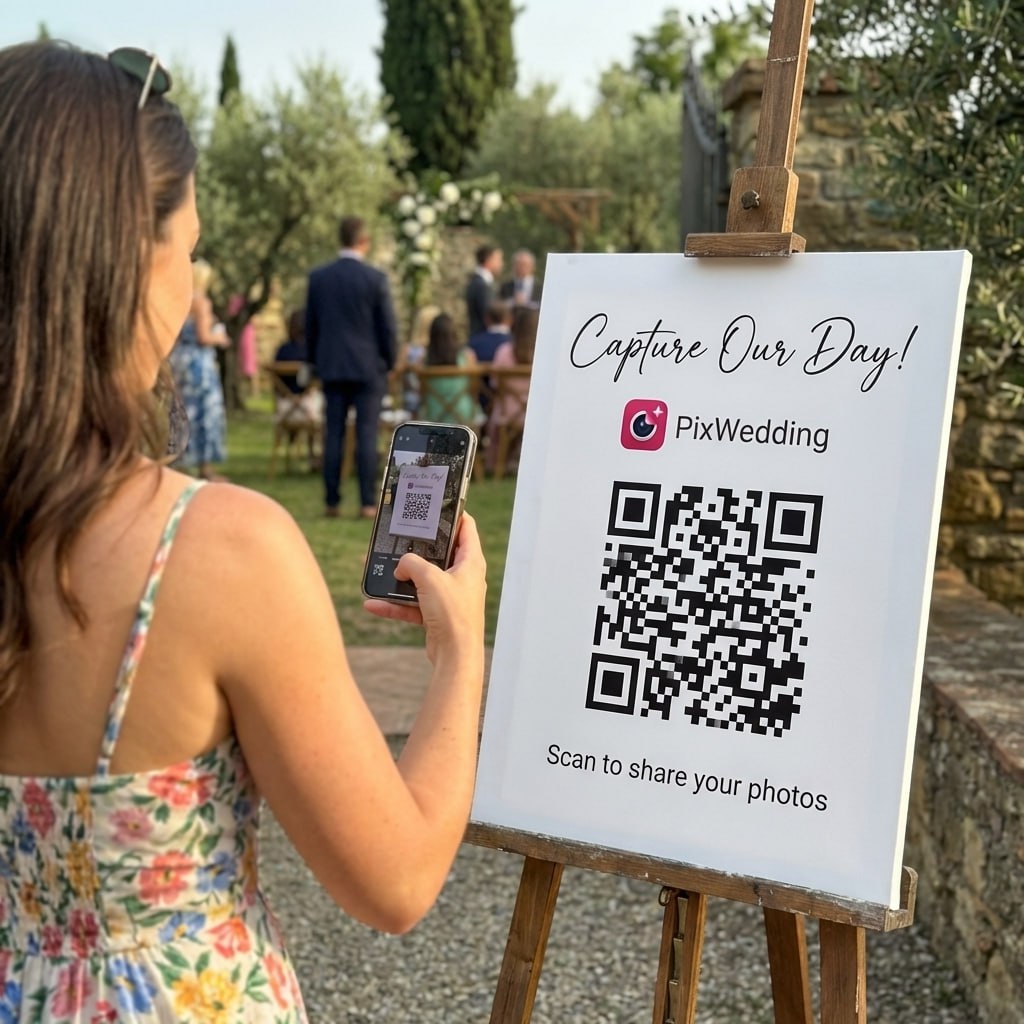
Here is exactly what happens when a guest scans your QR code. Every step takes seconds, and no app or account is needed.
Set Up Your QR Code FreeThe 30-Second Upload Process
Step 1: Guest Points Phone Camera at QR Code
2 secondsThe guest opens their phone camera (iPhone or Android) and points it at the QR code on the table card, sign, or sticker. A link notification appears on screen within 1-2 seconds.
Step 2: Tap the Link to Open Upload Page
3 secondsThe guest taps the notification link. Their browser opens directly to your wedding album upload page. No app download, no sign-up, no login. The page loads immediately.
Step 3: Select Photos From Camera Roll
10 secondsThe guest taps the upload button and selects one or more photos from their camera roll. They can select multiple photos at once for batch uploading. The photo picker is the native phone interface they already know.
Step 4: Photos Upload Automatically
5-15 secondsSelected photos upload immediately. A progress indicator shows each photo uploading. Full resolution is preserved. The guest can continue selecting more photos or close the browser.
Step 5: Confirmation and Done
2 secondsEach photo shows a green checkmark when uploaded successfully. The guest can add more photos anytime by scanning the QR code again. Total time from scan to uploaded photos: under 30 seconds.
Supported Photo Formats
Common Issues and Quick Fixes
QR code will not scan
Ensure the phone camera is in photo mode (not video). Clean the camera lens. Try moving closer or further from the code. Check that the QR code has adequate lighting and is not covered by glare.
Upload page loads slowly
This is usually a WiFi/cellular issue. Ask the guest to switch from WiFi to cellular data or vice versa. Venue WiFi can be overloaded with 150+ guests connected.
Photos appear to freeze during upload
Large photos (5MB+) take longer on slow connections. The upload is likely still running in the background. Ask the guest to keep the browser open for 30-60 seconds.
Guest has an older phone
QR code scanning works on all iPhones since iPhone 6s and all Android phones since 2018. For very old phones, share the direct URL link instead of the QR code.
Related Upload Guides

First dance
You guys!!
Guests upload in 30 seconds, you keep every shot.
No app to download, no account to create. Scan, pick photos, done. Your complete wedding album builds itself as the night goes on.

From Mom
Scan to join the album
No app, no account
UPLOADING
Saving your moment
THE ALBUM
Emma & Jack
June 21, 2026
647 photos · 95 guests







SCAN TO TRY
pix.wedding/
your-wedding
Why QR Code Photo Uploads Changed Wedding Photography
Before QR code upload technology, collecting photos from wedding guests required texting, emailing, AirDropping, or asking guests to download an app. Each method had significant friction. Texting compressed photos. Email required knowing everyone's address. AirDrop only worked between iPhones within close range. App downloads cut participation by 50-70%.
QR code uploads eliminated every point of friction. A guest scans a code, selects photos, and they appear in your album. The technology works on every modern smartphone without installing anything. This is why QR code photo sharing has become the standard for weddings since 2024.
- •No app download means every guest can participate immediately
- •Browser-based uploads work on all smartphones from 2018 onward
- •Batch upload lets guests share 10, 20, or 50 photos at once
- •Full resolution preservation means printable guest photos
- •Zero account creation removes the biggest friction point
Optimizing Upload Speed at Your Wedding Venue
The most common issue with QR code photo uploads at weddings is network speed. When 150 guests are connected to the same venue WiFi, bandwidth gets thin. There are two strategies to handle this: talk to your venue about dedicated bandwidth for your event, or encourage guests to use cellular data instead of WiFi.
Cellular data (4G/5G) is often faster and more reliable than venue WiFi during large events. If your venue is in a strong cellular coverage area, you may not need WiFi at all. For rural or basement venues with poor cellular coverage, ask the venue to provide a dedicated WiFi network for photo uploads.
Explore more free wedding tools
Everything you need to make your wedding day stress-free and unforgettable.
QR Sticker Designer
Design custom print-ready stickers.
Hashtag Generator
Create unique wedding hashtags.
How to Collect Guest Photos
5 methods ranked by participation rate and ease.
Get Photos After the Wedding
Message templates to gather guest photos post-wedding.
Share Wedding Photos with Guests
Compare every sharing platform by ease and participation.
Best Way to Get Guest Photos
The single method with the highest participation rate.
How to Make a Shared Wedding Album
Step-by-step setup for every platform.
Alternative to Disposable Cameras
Better, cheaper options than disposable cameras.
QR Code Upload FAQ
Everything you need to know about our free tools and how they help your wedding day.
The entire process from scanning the QR code to having photos uploaded takes 20-30 seconds. Scanning takes 2 seconds, the upload page opens in 3 seconds, photo selection takes 5-10 seconds, and the upload completes in 5-15 seconds depending on photo size and connection speed.
Pix Wedding preserves the full original resolution of every uploaded photo. A typical iPhone photo at 4032 x 3024 pixels (12MP) is uploaded at full quality. This means guest photos are printable at any size without quality loss.
Yes. When the photo picker opens, guests can select multiple photos by tapping on each one. All selected photos upload simultaneously. There is no limit on how many photos can be selected in a single batch.
No. Pix Wedding requires zero account creation from guests. They scan the QR code, their browser opens, they select photos, and upload. No email, no password, no name required. This zero-friction approach is why participation rates reach 80-95%.
The upload page shows a clear error indicator if any photo fails. The guest can tap retry to attempt the upload again. Failed uploads are typically caused by a brief network interruption. Retrying usually succeeds immediately.
Yes. The QR code and upload link remain active after the wedding day. Many guests upload additional photos in the days following the wedding as they review their camera roll. The album owner can set a custom deadline if desired.