
How to Make a Slideshow With Music
Compare free editing options, choose music with a suitable license, and time your photos to the track. Start by gathering the pictures you want to include.
Quick Answer
Gather your photos, choose an editor, add music licensed for your intended use, then export and test the finished video. Arrange photo changes around the music and allow longer holds for captions or group portraits.
Step-by-Step: How to Make a Slideshow With Music
Follow these four steps in order. The most common mistake is jumping straight to the editing tool before having all the photos ready.
- 01
Gather all your photos first
Collect the photos into one folder before opening the editor. Ask contributors for the originals, then remove duplicates and choose the moments you want to include.
- Create a shared upload album and send the link before the event
- Ask guests to upload before they leave, then send a reminder with a clear deadline
- For a four-minute draft, try 60 photos at four seconds each, before allowing for titles and transitions
- 02
Pick your slideshow tool
Choose based on where you'll watch it (phone, TV, or computer), whether you need it watermark-free, and how much editing control you want. The comparison table below covers the main free options in detail.
- Canva: browser editing; free assets can export without a watermark
- CapCut: arrange photos and audio on a timeline; paid assets and features are separate
- iMovie: a free option for supported Apple devices
- Animoto: free editing has branding; sharing and downloads require a paid plan
- 03
Add and sync your music
Upload your photos to the tool, then add your chosen track. Most tools let you trim the song to match the slideshow length. For beat-syncing, add the audio first, then arrange photos to land on the beats.
- Add music before arranging photos so you can sync photo transitions to the beat
- Trim the song at a natural pause, not mid-lyric
- Set photo duration to match song energy: slow ballad = 4-6 seconds per photo, upbeat pop = 2-3 seconds
- 04
Export and share
Use 1080p as a starting point for a TV slideshow, then choose settings supported by the playback device. Preview the exported file on that device before the event.
- Choose a video format supported by the device that will play the slideshow
- For a wedding reception slideshow, export to a USB drive as a backup alongside any streaming option
- Keep a local backup of the finished video and its source photos
Watch an iMovie slideshow come together
Hey Ivan! shows the Mac workflow for arranging photos and music into a finished slideshow.
For soundtrack options, read Apple's instructions for adding music in iMovie.
Free Slideshow Makers With Music: Comparison Table
Vendor documentation checked September 20, 2026. Compare download access and watermark restrictions before spending time on the full edit.
| Tool | Platform | Free Tier | No Watermark | Music Library | Beat Sync | Export |
|---|---|---|---|---|---|---|
| Canva | Browser | Free assets; paid assets separate | With free assets | Free and paid tracks | Manual timing | Video download |
| CapCut | Desktop + Mobile | Free editor; paid features separate | Depends on assets and workflow | Library or imported audio | Timeline editing | Video export |
| iMovie | Mac / iPhone / iPad | Free | No app branding | Built-in music and imported audio | Manual timing | Up to 4K on supported devices |
| Animoto | Browser | Free editing | Free videos have branding | 50 licensed tracks | Manual timing | Paid plan for downloads |
| Clideo | Browser | 500 MB per file | Free exports have watermark | Import audio | Manual timing | Free: up to 720p |
| Movavi | Desktop | 7-day trial | Trial has watermark | Built-in music tracks | Timeline editing | Trial saves half the audio length |
Use free assets in Canva to avoid watermarks. Check the download restrictions in the table before choosing a trial or free editing plan.
First dance
You guys!!
Gather every photo from your event before you start editing
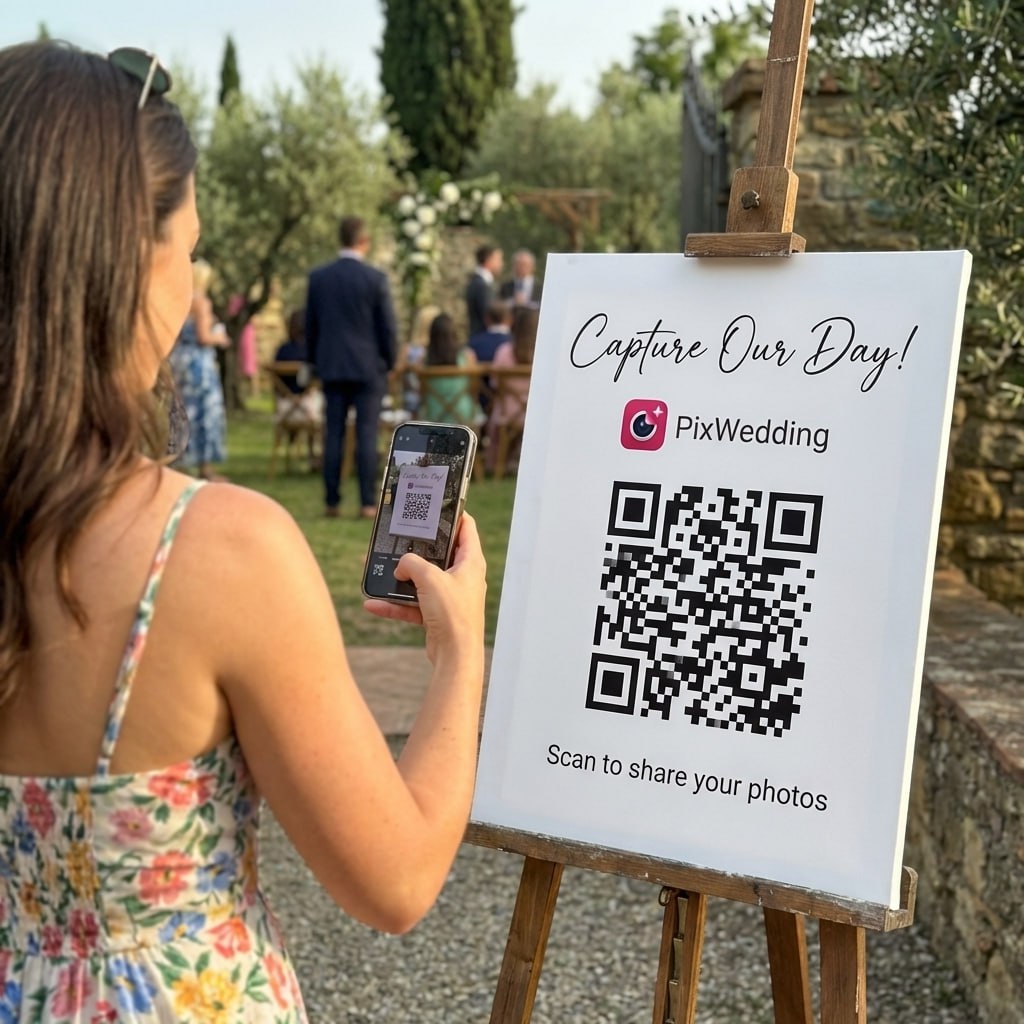
Give guests one QR code for browser uploads, with no app or guest account. Try 20 uploads free, no card. Full-album ZIP download is included on every paid plan, starting at $49 one-time.
From Mom
Scan to join the album
No app, no account
UPLOADING
Saving your moment
THE ALBUM
Emma & Jack
June 21, 2026
647 photos · 95 guests


SCAN TO TRY
pix.wedding/
your-wedding
Where to Get Free, Copyright-Safe Music for Your Slideshow
Start with a music library that publishes clear license terms. Choose a track whose permitted uses cover your slideshow and keep any required credit with the finished video.
A listening download is not a video license. The sources below explain their own permissions and attribution rules. Read those terms before publishing or livestreaming your slideshow.
YouTube Audio Library
FreeSometimes requiredFilter tracks by mood, genre and duration. Copy the required credit for Creative Commons tracks; the library also offers tracks that do not require attribution.
Best for: YouTube-safe music
Pixabay Music
FreeNot requiredThe Content License allows free use and adaptation without attribution, subject to its restrictions. Save the track details and license with your project.
Best for: Commercial + social use
Incompetech (Kevin MacLeod)
Free with credit; paid Standard License without creditRequired unless you payChoose a track, then use the licensing tool to generate the required credit or obtain a Standard License.
Best for: Film and cinematic feel
Bensound
Free License tracks with attributionRequired on free tierFor a Free License track, include the supplied attribution text and unique license code in the video description. The code covers a single video.
Best for: Cinematic and emotional pieces
Musopen
FreeCheck the recordingBrowse classical recordings, then read the rights information for the selected performance. An old composition does not make every recording of it public domain.
Best for: Classical music slideshows
How to Sync Photos to the Beat of the Music
Beat-synced slideshows look like they took hours to make but the process is straightforward once you know the right order of operations. The key is adding audio before placing photos.
Add the audio track first
Import your song before placing a single photo. Arranging photos to music is far easier than squeezing music under a fixed set of clips.
Listen for the downbeats
Listen through the track and mark the beats you want to use. Place photo changes at those markers, then preview the sequence with the music.
Match photo duration to tempo
Try shorter holds for energetic music and longer holds for quiet sections. Leave enough time to read any captions and recognize the people in each photo.
Anchor emotional peaks to the best photos
Find the chorus or the biggest moment in the song, then place your strongest photo there. The first kiss at a wedding should land on the chorus drop, not buried in the verse.
Use transitions sparingly
A clean cut on the beat feels more professional than a dissolve. Save cross-fades for slow emotional sections. Too many transition styles in one slideshow looks amateur.
Fade out, do not cut off
Set a 2-3 second audio fade at the end of your slideshow. Abrupt endings feel unfinished no matter how good the photos are.
CapCut shortcut for beat sync
Add your track before arranging photos. Work with a short section first, preview the timing, then apply the same approach to the rest of the song.
How to Pick the Right Song for Your Slideshow
The soundtrack sets the pace and mood. Choose it early so your photo sequence has a clear beginning, middle and ending.
Match the mood, not just the memory
A happy upbeat song on photos of a tearful reunion can create tonal whiplash. Pick a song whose emotional register matches what the photos show.
Avoid songs with strong cultural associations
Using a famous song everyone associates with a film or a breakup will make viewers think of that, not your photos. Choose something the audience will not have strong pre-existing associations with, or use an instrumental version.
Tempo should match the number of photos
Divide the song length by your photo count to find a starting pace. For example, 180 seconds divided by 45 photos gives four seconds per photo, before titles and transitions.
Try an instrumental under captions
Lyrics pull attention away from the photos. Instrumentals or wordless tracks let the images do the work, especially for emotional content like weddings or memorials.
Start strong, end strong
Use the song's intro for early wide-shot photos, the chorus for your 5-10 best photos, and a quiet outro for the final credits or closing shot.
Check for length before committing
Forty photos at four seconds each need 160 seconds, or 2 minutes 40 seconds, before titles and transitions. Trim the song at a natural ending or adjust your photo count.
Gather the Photos First: The Step Most People Skip
Collecting contributions before editing lets you choose from the full set. Send one upload link, set a deadline and check that the files open before building your sequence.
For solo personal photos
Create a dedicated folder on your desktop. Export from your phone in one batch. Sort by date, then do a quick cull to remove blurry, duplicate, and unflattering shots. This leaves your strongest images ready to import.
For events with multiple people
For weddings, parties and reunions, give everyone the same upload link or QR code. Guests can add photos to a Pix album in their browsers without an account. Full-album ZIP download is included on every paid Pix plan.
Curate before you edit
For a four-minute draft, try 60 photos at four seconds each, then allow extra time for titles and transitions. Rule of thumb: one representative photo per distinct moment, not five duplicates of the same shot. Remove blurry, eyes-closed, and technically bad photos first, then pick the strongest from what remains.
Timing examples at four seconds per photo, before titles and transitions
7 Slideshow Mistakes That Ruin the Final Video
These are the most common errors, each with a direct fix.
Using a track without a suitable video license
Use music with permission that covers the video you plan to publish. The linked music libraries explain their license and credit requirements.
Starting to edit before gathering all the photos
Gather contributions before editing so late arrivals do not force you to rebuild the sequence.
Exporting at low resolution
Preview an export on the screen you will use. If faces or captions look soft, increase the export quality if your editor supports it.
Including every photo instead of curating
Choose one strong image for each moment. Cut near-duplicates and give important photos room to stay on screen.
Forgetting to test on the actual playback device
A slideshow that plays fine on your laptop may stutter on a venue TV or a streaming stick. Test on the actual device before the event.
Using too many transition effects
One or two transition styles max. Mixing spin, zoom, dissolve, and wipe in the same slideshow looks chaotic. Clean cuts on the beat look more professional.
Choosing a tool that adds a watermark on the free tier
Canva permits watermark-free exports with free assets. Animoto requires a paid plan for downloads, while Clideo free exports and Movavi trial exports have watermarks.
Related Guides
More slideshow and photo guides on Pix Wedding.
How Long Should a Slideshow With Music Be?
For a first draft, try a three-to-five-minute slideshow. At four seconds per photo, 45 photos take three minutes and 75 take five minutes, before titles and transitions. Preview it with someone who has not helped edit it.
The number of photos drives the length. A four-minute sequence of 120 photos gives each photo two seconds, before titles and transitions. Cut the photo count if people cannot follow the story at that pace.
A good rule: let the song decide the length. Pick a track that is 3 minutes long, then curate enough photos to fill it at a pace that matches the tempo. You will end up with a better slideshow than if you start with 200 photos and try to find music to match.
- •Short social post, suggested draft: 30-90 seconds, 10-30 photos
- •Online video, suggested draft: 2-4 minutes, 30-60 photos
- •Wedding reception display: 4-8 minutes, 60-120 photos
- •Memorial or tribute slideshow: 5-10 minutes, 80-150 photos
- •Birthday or graduation: 3-5 minutes, 40-80 photos
Slideshow With Music for Specific Occasions
Different events call for different music choices and photo pacing. A wedding slideshow playing during cocktail hour has a different audience than a graduation video posted to Instagram.
For weddings, instrumentals work better than songs with lyrics during dinner or ceremony moments, since guests are also talking. Songs with a personal connection to the couple (first dance song, proposal song) are meaningful if guests know the story.
For graduations, upbeat pop or indie songs with clear momentum work well since the visual energy of graduation photos is already high. For memorials, classical music from Musopen or a soft acoustic track tends to support reflection without competing with the emotional weight of the photos.
- •Wedding: instrumental versions of meaningful songs, soft indie, or classical
- •Graduation: upbeat pop, indie anthems, or acoustic covers of classic songs
- •Birthday: the person's favorite genre, or a song tied to the year they were born
- •Memorial: piano, acoustic guitar, or public-domain classical pieces
- •Baby shower or first year: soft lullaby-style instrumentals or gentle folk
- •Travel montage: upbeat world music or cinematic orchestral tracks
Slideshow With Music: Common Questions
Everything you need to know about our free tools and how they help your wedding day.
Canva is a useful browser option when you use free assets, which can export without a watermark. iMovie is free for supported Apple devices. CapCut offers timeline editing for photos and music; avoid paid assets if you want to keep the project free.
Import your photos, add an audio track to the timeline, then trim its start and end to fit the sequence. Preview the volume alongside any narration. Apple provides instructions for adding built-in soundtracks or other audio to an iMovie project.
YouTube Audio Library offers music for YouTube videos, with attribution required on its Creative Commons tracks. Pixabay, Incompetech and Bensound also publish licensing terms for their tracks. Follow the terms for the specific recording and keep the credit text with your project. On Musopen, check both the composition and recording rights.
Add the song first, mark the beats you want to use, then trim each photo clip to end at a marker. Hold important photos longer even if you skip a beat. Preview the full sequence rather than relying only on the waveform.
Yes. Canva allows watermark-free exports when the project uses free elements, images, footage and music. iMovie is another free choice on supported Apple devices. Animoto downloads require a paid plan; Clideo free exports and Movavi trial exports carry branding.
Create a shared upload album and send guests its link or QR code. Pix Wedding accepts 20 guest uploads free, with no card and no guest account. Full-album ZIP download is included on Starter ($49), Standard ($59) and Pro ($89), all one-time payments. Download the collection, choose the photos you want, then import them into your editor.