One Party
$74$49one-time
For a single celebration
Unlimited photos, videos & guests
Original quality (no compression)
Film roll mode with shot limit & revealNEW
QR code template designs




3 months upload from party date
6 months storage + ZIP download
 wedding
A complete, step-by-step guide for any birthday: first birthday, kids party, milestone 30/40/50, or surprise. Covers tool choice, photo count, songs, and how to collect photos from every guest.
To make a birthday slideshow: collect 20 to 40 photos organized into chapters, pick a song that matches the vibe, build in Canva (browser, free) or CapCut (mobile, free), set each photo to 5 to 7 seconds, add simple cross-fade transitions, export as MP4 at 1080p, and test on the actual party display before the event.
The single biggest factor in how good a birthday slideshow feels is photo collection: the more sources you pull from (family members, old friends, different eras), the more emotionally powerful the result. Start collecting photos two to three weeks before the party, not the night before.
A first birthday slideshow is nothing like a 50th birthday slideshow. The photo count, structure, song choice, and emotional arc all shift based on who you are celebrating and who is in the room.
Photo Count
20 to 25 photos
Target Length
2 to 3 minutes
Structure
Month by month growth, first milestones (first smile, first food, first steps), family portraits
Song Suggestion
"What a Wonderful World" - Louis Armstrong or "You Are the Sunshine of My Life" - Stevie Wonder
Pro Tip
Include a photo from every month if you have them. Pair each month milestone with a short caption like "Month 1", "Month 6", "One Year!" Include parents and siblings prominently.
Photo Count
25 to 35 photos
Target Length
3 to 4 minutes
Structure
Baby photos, each school year, sports and activities, friends and cousins, funny moments
Song Suggestion
"Happy" - Pharrell Williams or "Best Day of My Life" - American Authors
Pro Tip
Kids love seeing themselves as babies and laughing at old haircuts. Include photos of their close friends from school. Add a caption slide with a fun fact per year.
Photo Count
35 to 65 photos, more for each extra decade
Target Length
4 to 8 minutes
Structure
Childhood chapter, school and teenage years, early adult life, career and family milestones, present day
Song Suggestion
"Here Comes the Sun" - The Beatles (40th/50th) or "Sweet Caroline" - Neil Diamond (for crowd singalong moment)
Pro Tip
Contact family members and old friends weeks in advance to collect photos from across the decades. A photo from the birth year alongside a recent photo makes a powerful opener.
Photo Count
30 to 45 photos
Target Length
4 to 6 minutes
Structure
Played after the surprise reveal. Lean into the journey of friendship and the surprise itself if you have planning photos.
Song Suggestion
The birthday person's actual favorite song. Ask a close friend or family member if you don't know it.
Pro Tip
For a surprise party, the slideshow is often more emotional because the guest of honor has no idea it is coming. End on a recent photo and then cut to a live video message from a distant friend or family member if possible.
Follow these eight steps in order. The most common mistake is skipping straight to the software before you have your photos organized and your music chosen. Sort the photos first so you can spend your editing time on the story.
A first birthday slideshow runs 2 to 3 minutes. A 50th runs 6 to 8. Decide the length before you gather photos so you know exactly how many you need (roughly one photo per 5 to 7 seconds of runtime at comfortable pacing).
This is the step most people underestimate. Your own camera roll is not enough. Family members, old friends, school photos, and prints from grandparents all have moments you have never seen. Start collecting at least two to three weeks before the party, not the night before.
From everything collected, select only the photos that carry emotional weight, show the birthday person clearly, or tell a part of the story nothing else can tell. Delete duplicates, dark shots, and blurry images immediately. Organize remaining photos into four to six chapter folders.
Pick your song or songs before you open the slideshow editor. Music sets the pacing. If you pick a slow ballad, each photo can linger. If you pick an upbeat track, tighter cuts feel right. Knowing the track length also tells you how many photos to include to fill the time naturally.
Import photos in chapter order. Add your music track. Set timing (5 to 7 seconds per photo for standard pacing, 3 to 4 seconds for high-energy cuts). Add simple fade transitions between chapters. Add text overlays sparingly: a year marker or a short caption works well, but dense text competes with the photos.
A simple black or dark slide with white text between chapters ("The Early Years", "School Days", "Adventures Together") gives viewers a moment to breathe and primes their emotional response for the next set of photos. Keep each title short enough to read at a glance.
Watch the whole slideshow twice before exporting. First pass: flag any photo that feels out of place, too slow, or too fast. Second pass: close your eyes for the first 10 seconds and feel whether the opening is strong. If it is not gripping in the first 15 seconds, move your three strongest photos to the front.
Export to MP4 at 1080p resolution. Plug the file into the actual TV or projector you will use at the party and play 30 seconds of it before the event. Colors and brightness differ dramatically between a laptop screen and a party venue display. What looks perfect on your monitor can look washed out or too dark on a projector.
How to Hub walks through a birthday video in Canva so you can follow the editing steps with your own photos.
Birthday memories
From the family
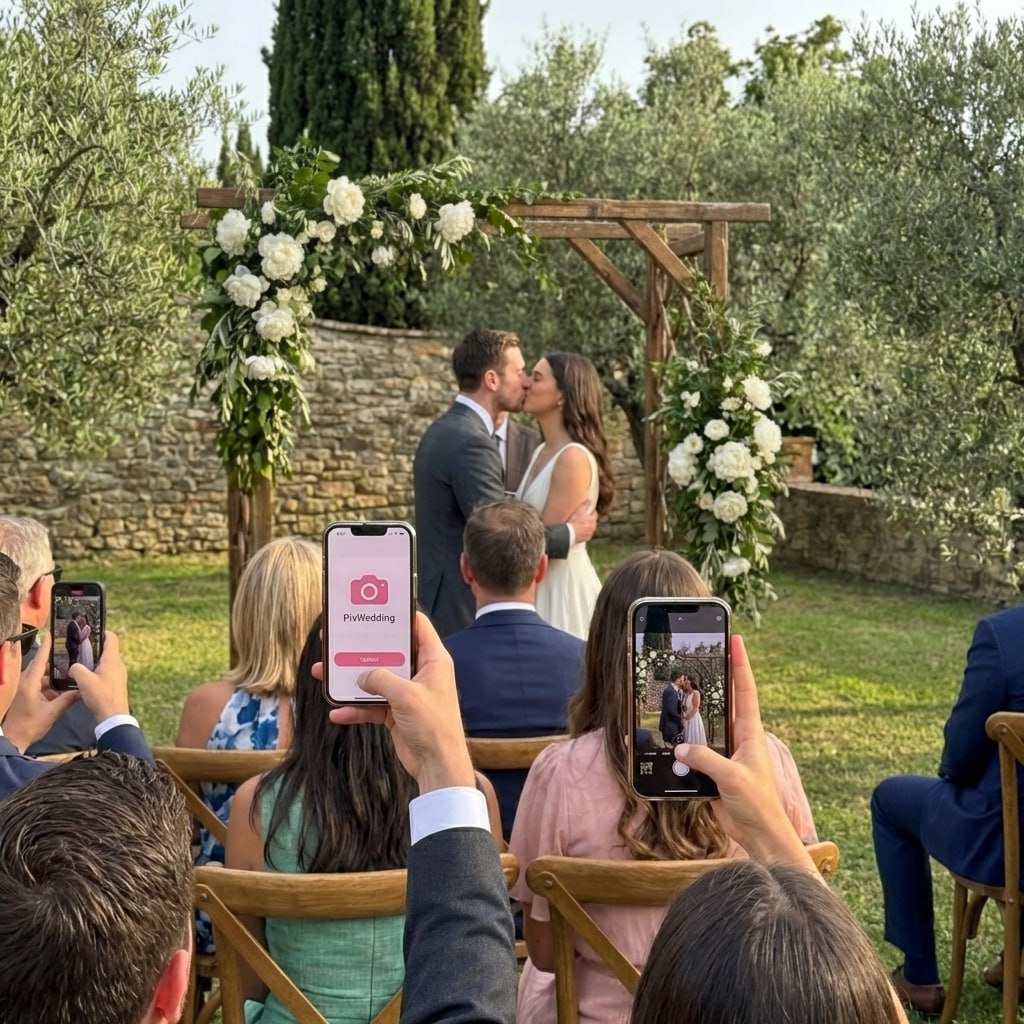
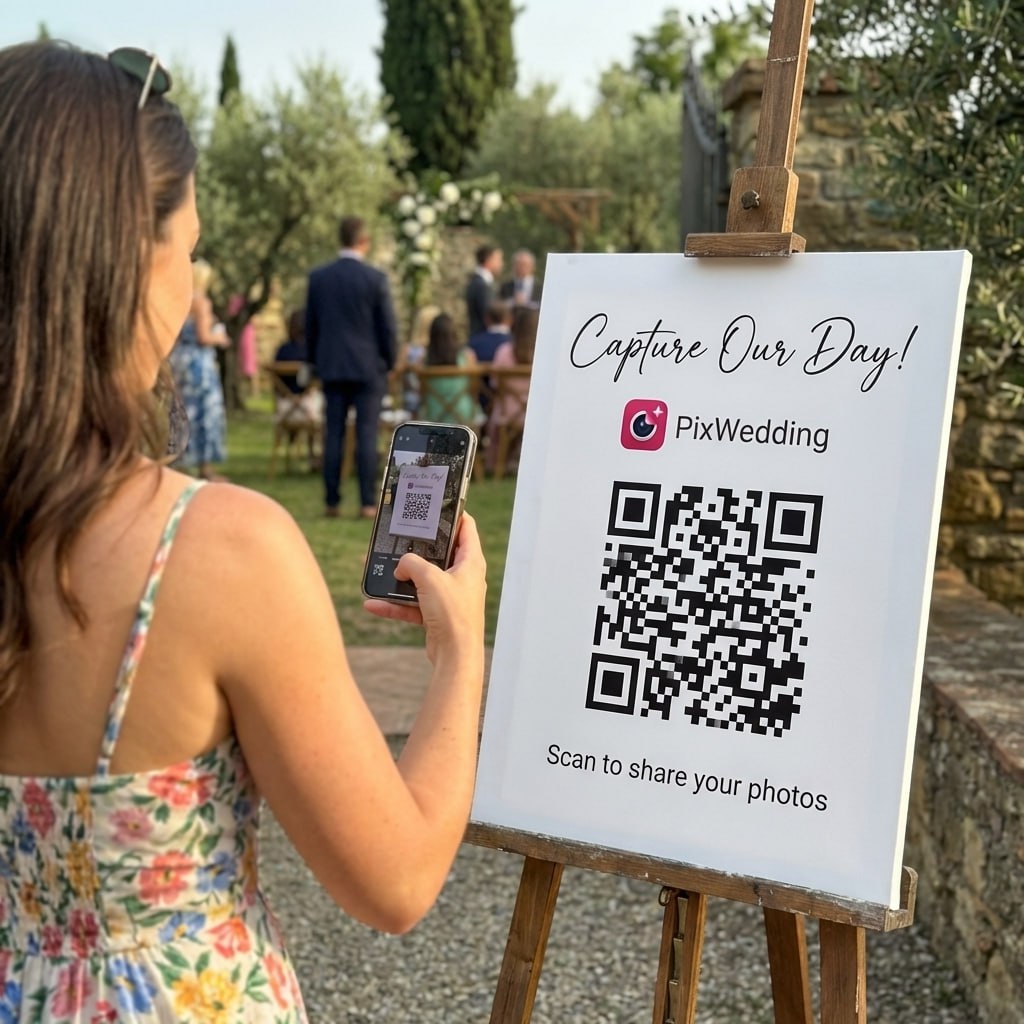
Share a QR code in your invitation. Guests scan it, upload their favorite photos of the birthday person, and they land in one album automatically. No app downloads. Works on any phone. Your slideshow source photos are waiting when you sit down to build.
From Grandma
Scan to join the album
No app, no account
UPLOADING
THE ALBUM
June 21, 2026
647 photos · 95 guests


SCAN TO TRY
pix.wedding/
your-wedding
The formula is simple: at comfortable pacing, one photo every 5 to 7 seconds. A 4-minute slideshow uses around 35 to 45 photos. Use this table to plan before you start collecting.
5 to 7 sec
per photo at comfortable pacing
20 to 40
photos for a typical party slideshow
3 to 5 min
ideal runtime at a party
MP4 1080p
export format to test on the real screen
| Birthday Type | Target Length | Photo Count | Notes |
|---|---|---|---|
| First Birthday (1st) | 2 to 3 min | 20 to 25 | One per month of life is a classic structure |
| Kid's Party (2 to 12) | 3 to 4 min | 25 to 35 | Include friends, not just family |
| Teen Birthday (13 to 19) | 3 to 5 min | 30 to 40 | School years, friends groups matter most |
| Milestone 30th | 4 to 5 min | 35 to 45 | Three decades, roughly 12 photos per decade |
| Milestone 40th | 5 to 6 min | 45 to 55 | Four chapters: childhood, 20s, 30s, now |
| Milestone 50th | 6 to 8 min | 50 to 65 | Five decades, go deep on the throwbacks |
| Surprise Party | 4 to 6 min | 30 to 45 | Include guest photos from the event itself via QR album |
Swipe to compare
Pacing note: 5 seconds per photo for upbeat celebratory slideshows, 7 seconds per photo for reflective emotional ones. Mix if you have distinct chapters.
Music is the emotional multiplier. The same set of photos will make the room feel completely different depending on what is playing. Pick based on the person and the mood you want to create, not just what is popular. Here are four vibe categories with real song picks that work in birthday slideshows.
For milestone birthdays where the room should feel the weight of time
For kids parties, 30ths, and anyone who wants the room dancing
Match the decade the birthday person came of age for instant emotional hit
Soft tracks that let the photos speak without competing with a big vocal
Two songs beat one for milestone slideshows
For a 40th or 50th birthday slideshow, consider two songs that cross-fade at the midpoint: a nostalgic track for the childhood and youth chapters, then a warmer or more uplifting track for the recent years. This shift gives the slideshow an arc, moving from "where you came from" to "who you are now." Set the cross-fade to about 4 seconds so it feels like a natural transition rather than a hard cut.
Every tool claims to be the easiest. Here is an honest comparison based on what each one does well for birthday slideshows specifically.
| Slideshow maker | Cost | Platform | Best at | Main limitation |
|---|---|---|---|---|
| Canva | Free plan; Pro price depends on region and billingCanva pricing | Browser / Mobile | Ease of use, template variety | Manual timing per slide, slower for large libraries |
| CapCut | Free tools; paid price shown at checkoutCapCut pricing | Mobile / Browser | Auto beat-sync, fast social export | Some effects and tools need a paid plan |
| iMovie | FreeiMovie pricing | Mac / iPhone | Precise timing, multiple audio tracks | Apple devices only |
| Animoto | Free creation; paid sharing/downloads, see current priceAnimoto pricing | Browser | Professional look with minimal effort | Sharing and downloads need a paid plan |
| Movavi | Paid subscription or lifetime license; see current USD priceMovavi pricing | Windows / Mac | Slideshow Wizard and timeline editing | Steeper learning curve, paid |
| Clideo | Free tier; Pro from $12/month, or $108/year billed yearly (USD)Clideo pricing | Browser | Nothing to install, works on any computer | Free feature limits; paid plan auto-renews |
Swipe to compare
Prices checked September 2026 on each maker's own pricing page. Canva and CapCut show the final Pro price at checkout, and it varies by region.
Free
Canva Free is enough for a birthday slideshow with music. Canva Pro is optional, and its price depends on your region and billing cycle.
View the source$12/month
Clideo Pro, entry tier with 500 credits, billed monthly. Billed yearly it is $108, which works out to $9 a month.
View the sourcePrices checked September 2026. Paid Canva and CapCut pricing depends on region and checkout; check current USD pricing for Animoto and Movavi.
Animoto sharing and download rules; Canva birthday video instructions.
If you have never made a slideshow before:
Use Canva. Open a browser, search "Canva birthday slideshow", pick a template, and drag your photos in. Export is free. You can finish a clean 3-minute slideshow in under an hour.
If you are building on your phone:
Use CapCut. Try its mobile timeline for timing photos to music, and check which effects need a paid plan.
If you want the most polished result:
Use Animoto if you want it designed without effort, or Movavi if you are comfortable on a desktop and want full control over every transition and timing.
The photos in your own camera roll are only a fraction of the story. A friend from twenty years ago has photos you have never seen. Grandparents have prints no one digitized. A cousin was at the birthday person's fifth birthday party and has photos on an old phone somewhere. Getting those photos into your slideshow is what turns a good slideshow into a great one.
Create a free QR code photo album using Pix Wedding. Print the QR code on your invitation or party decoration. Guests scan it with their phone camera and upload photos directly. No app required. Photos land in one organized album you can download as a batch for your slideshow.
Best for: any party where you want photos from multiple guests or family members spanning different eras
Create a shared Google Photos or iCloud album and drop the link in a family group chat or the invitation. Ask people to add their favorite photos of the birthday person from any time period. Check contributor permissions before sharing. Google Photos contributors need a Google account; new iCloud Shared Albums can accept web contributions without an Apple Account.
Best for: close family groups where everyone is already in a group chat
The lowest-friction option. Ask a family group to send photos over WhatsApp or iMessage. You will need to download them individually and they will lose quality due to compression. Good for small groups of 5 to 10 people who are not comfortable with cloud albums or QR codes.
Best for: small immediate family collections, quick turn-around
Timeline: Start collecting 3 weeks before the party
Start with 20 guest uploads free, no card. Every paid plan takes unlimited guests, photos and videos, and Big Party adds a live slideshow that plays guest uploads on a screen at the party.
For a single celebration
For a crowd, a screen and a dance floor
One-time payment, no subscription
For big guest lists and repeat events
One payment. Yours to keep. No subscription. No renewals. No surprise charges.
Secure checkout. Polar, Apple Pay, Google Pay.
Money-back guarantee: if your guests never upload a single photo, you get 100% back. See how it works
One payment. No subscription. No renewals.
Start a free party albumMost bad birthday slideshows fail for the same predictable reasons. Here they are, with exactly how to avoid each one.
Mistake: Including every photo you own
Fix: Cap yourself at 40 to 60 photos maximum. Quality over quantity. A 12-minute slideshow is not a gift, it is an endurance test.
Mistake: Starting too late to collect photos
Fix: Ask family and friends for photos at least two to three weeks before the party. The night-before scramble produces a slideshow with ten years missing because grandma's prints are in a box no one could find.
Mistake: Picking music that fights the mood
Fix: A loud aggressive track ruins quiet family moments. A slow ballad under fast-cut funny photos feels disconnected. Choose music that matches the emotional tone of your photo selection, not just whatever is popular.
Mistake: Over-using transitions and effects
Fix: One transition style throughout is enough. Spinning stars, wipes, zooms, and fades mixed together look chaotic. A simple cross-fade is almost always the right choice.
Mistake: Building the slideshow the night before the party
Fix: Give yourself at least three days. Night-before slideshows always have timing issues, export problems, or missing photos that would have been easy to fix with even 24 more hours.
Mistake: Not testing on the actual display
Fix: A slideshow that looks great on a laptop can appear washed out, too dark, or stretched on a party TV or projector. Test the file on the actual screen before the event. Always.
Mistake: Using copyrighted music for a public upload
Fix: If you are sharing the slideshow to YouTube, Facebook, or Instagram, use royalty-free music from YouTube Audio Library or Soundstripe. Check the track license before uploading; a platform may claim, mute or block music you do not have permission to use.
Run through this before you call your slideshow done.
First dance
You guys!!
Put a QR code on the invite. Friends and family upload from their phones, no app and no account. Start with 20 free guest uploads, no card.
From Mom
Scan to join the album
No app, no account
UPLOADING
THE ALBUM
June 21, 2026
647 photos · 95 guests
SCAN TO TRY
pix.wedding/
your-wedding
More on collecting party photos and building slideshows with music.
Read the provider instructions: Apple Photos memory movies, Google Photos video creation, Google Photos album collaboration, iCloud Shared Albums, YouTube Audio Library, Soundstripe music licensing.
Most birthday slideshows fail for the same reason: they prioritize completeness over feeling. Every photo makes the cut. The whole thing runs twelve minutes. Half the room is checking their phone by the third song. The fix is simple: tell a story, not an inventory.
A strong slideshow has a clear structure. It opens with a hook (a great photo, a funny early shot, or the earliest available picture), builds through the years with a clear arc, and closes on something emotionally true. It does not try to include every photo from every year. It picks the photos that carry the story forward.
Specificity is what separates memorable slideshows from forgettable ones. A photo of the birthday person laughing at their fifth birthday party with their now-adult best friend is worth more than ten generic family vacation shots. Photos that show relationships, personality, and growth are the ones that make people gasp, laugh, and cry in the right order.
One practical tip before you open any software: sort your photos into folders by chapter, not by year. For a milestone birthday those chapters might be "childhood", "school years", "early adult", "family and friends", and "recent". Having the chapters defined before you start means you can drop photos into slots instead of staring at a library of 800 images wondering where to begin.
Canva, Animoto, Clideo, Movavi, iMovie, and CapCut all work, but they are not interchangeable. Choosing the wrong tool for your situation adds hours of frustration. Here is an honest breakdown based on what each tool does well and where it falls short for birthday slideshows specifically.
Canva is the best choice for most people making their first birthday slideshow. It runs in the browser, has birthday templates, lets you upload your own music, and exports to MP4 for free. The drag-and-drop interface is genuinely easy. The main limitation is that slide timing adjustments require manually dragging each clip, which gets tedious with 40 photos. But for a clean, presentable result in under an hour, Canva wins.
CapCut is the best choice if you are making the slideshow on your phone or if you want beat-synced editing where photos cut on the music beat automatically. It has free editing tools alongside paid options. Check whether your chosen effects need Standard or Pro before building the whole video.
iMovie is the best free desktop option for Mac users who want more control than Canva offers. You can set precise timing per photo, add multiple audio tracks that cross-fade, and add title cards with full font control. Its timeline gives you control over photo duration and audio.
Movavi Slideshow Maker is the strongest paid desktop option. It has a Slideshow Wizard that builds a basic slideshow automatically, then lets you refine it with titles, transitions and music. Worth the cost if you are making multiple slideshows or want a truly polished result.
Clideo is browser-based with nothing to install, which makes it ideal when you need to build something fast on someone else's computer. The free tier has feature limits. Pro renews automatically, so check the plan and cancellation terms before paying.
Animoto has the best ready-made birthday templates and is the easiest option if you want something that looks designed rather than assembled. The free plan lets you create videos, but sharing and downloads need Basic or higher. Check the current price before subscribing.
For a singalong, try Sweet Caroline by Neil Diamond.
Everything you need to make your wedding day stress-free and unforgettable.
Design custom print-ready stickers.
The best way to collect guest photos.
Create unique wedding hashtags.
5 methods ranked by participation rate and ease.
Message templates to gather guest photos post-wedding.
Compare every sharing platform by ease and participation.
The single method with the highest participation rate.
Step-by-step setup for every platform.
Everything you need to know about our free tools and how they help your wedding day.
Aim for 20 to 40 photos for a 3 to 5 minute slideshow. That runs about one photo every 5 to 7 seconds with music, which is the sweet spot for holding attention. A first birthday can work well at 20 to 25 photos. A 50th birthday spanning decades comfortably handles 40 to 60 photos if you break them into chapters. Anything over 80 photos tends to lose the room.
Match the song to the person and the vibe. For emotional milestone slideshows (40th, 50th), "Here Comes the Sun" by The Beatles or "A Thousand Years" by Christina Perri work well. For upbeat, fun slideshows, "Celebration" by Kool and the Gang or "Happy" by Pharrell Williams are crowd-pleasers. For first birthdays, something gentle like "What a Wonderful World" by Louis Armstrong lands perfectly. For surprise parties, pick the birthday person's actual favorite song. Using 2 to 3 songs with cross-fades lets you control the pace arc better than one long track.
Canva is the best free option for most people: browser-based, templates, easy music upload, and exports to MP4 at no cost. CapCut is the best choice for mobile-first creation and beat-synced slideshows. iMovie is the best free desktop option on Mac. Check paid effects before exporting from CapCut. Animoto requires a paid plan for sharing and downloads; Movavi offers paid licenses.
Three to five minutes is the ideal length for a birthday slideshow played at a party. Short enough that everyone watches the whole thing, long enough to feel meaningful. First birthday slideshows can run 2 to 3 minutes since the entire photo archive is only 12 months. Milestone birthday slideshows (50th, 60th) can stretch to 6 to 8 minutes when guests are specifically seated to watch. Never go over 10 minutes without an intermission.
The easiest method is a QR code album that guests can scan and upload to without downloading an app. Set it up a few weeks before the party, share the QR code in your invitation or a group message, and photos flow in automatically. Pix Wedding includes 20 guest uploads free, with no card required. Alternatively, ask a family group chat to submit photos to a shared Google Photos album, or use a cloud link in the party invitation.
Yes. CapCut and Canva both have mobile apps that let you build a full slideshow with music, transitions, and captions directly from your camera roll. Apple Photos on iPhone can auto-generate a Memory movie from any album. Google Photos on Android does the same. For more control over timing and text, try CapCut for manual timing, then check which tools need a paid plan.