









How to Make a Shared Photo Album Everyone Can Add To
The fastest method is a QR-based album (no account, no app, just scan and upload). If you want platform-specific steps for iCloud, Google Photos, or Dropbox, each one is below with the exact setting you need to flip.
Try Pix Free, No Account NeededQuick Answer
To make a shared photo album everyone can add to, you need to enable the right contributor setting on whichever platform you choose. In Google Photos, open the album, tap the three-dot menu, go to Options, and turn on Collaborate. In iCloud, open the shared album, tap the person icon, and enable Subscribers Can Post. For events where guests should not need an account, use Pix: generate a QR code, display it at your venue, and anyone with a phone can scan and upload photos instantly with no login required.
iCloud Shared Album
Best for all-Apple households. Contributor requirement: Apple ID.
Open Photos and create the album
Tap the Albums tab at the bottom of the Photos app. Tap the plus icon in the top-left corner, then choose New Shared Album. Give it a descriptive name.
Invite contributors
In the Invite People field, type the email address or iMessage phone number for each person you want to invite. Tap Next, then tap Create.
Enable Subscribers Can Post
Open your new shared album, tap the person icon at the top, and make sure Subscribers Can Post is toggled on. Without this, only you can add photos.
Share a Public Website link for non-Apple users
Under the same People screen, enable Public Website. Tap Share Link and copy the URL. Android users and people without Apple IDs can view the album at this URL but cannot upload photos to it.
Set the album limit
iCloud Shared Albums hold up to 5,000 photos and videos per album. This counts against iCloud storage for the original creator, not contributors.
Important: iCloud Shared Album contributors must have an Apple ID. Android users and guests without Apple devices can view the album via a Public Website link but cannot upload photos through it. If your group includes Android users, see the Google Photos or Pix sections below.
Google Photos Shared Album
Works on iPhone and Android. Contributor requirement: Google account.
Create or open an album in Google Photos
Go to photos.google.com or open the Google Photos app. Tap Library, then Albums, and tap New album. Give it a title and add some photos if you like.
Share the album
Inside the album, tap the share icon. You will see an option to share via link. Copy the link or send it directly to people in Google Contacts.
Turn on the Collaborate toggle
On the sharing screen, find the Collaborate toggle and turn it on. This is the critical step. Without it turned on, recipients can view photos but cannot add their own.
Confirm contributors have Google accounts
Anyone who wants to add photos via the Collaborate feature must be signed into a Google account. People without a Google account will see the album but will not have an Add Photos button.
Watch for Storage Saver compression
When contributors upload through shared albums, Google may apply Storage Saver compression (previously called High Quality), which caps photos at 16MP and uses lossy compression. If original resolution matters, remind contributors to check their upload quality setting in Google Photos under Settings, Backup, Upload size.
Resolution note: Google Photos applies Storage Saver compression by default, capping uploads at 16MP with lossy compression. For original-resolution photos, contributors need to change their Upload size setting to Original before uploading. This uses their Google account storage quota.
Pix QR Album
No account, no app, no friction. Works for iPhone and Android.
Create your Pix album
Go to pix.wedding and create a free wedding photo album. No account required for you or your guests.
Get your QR code
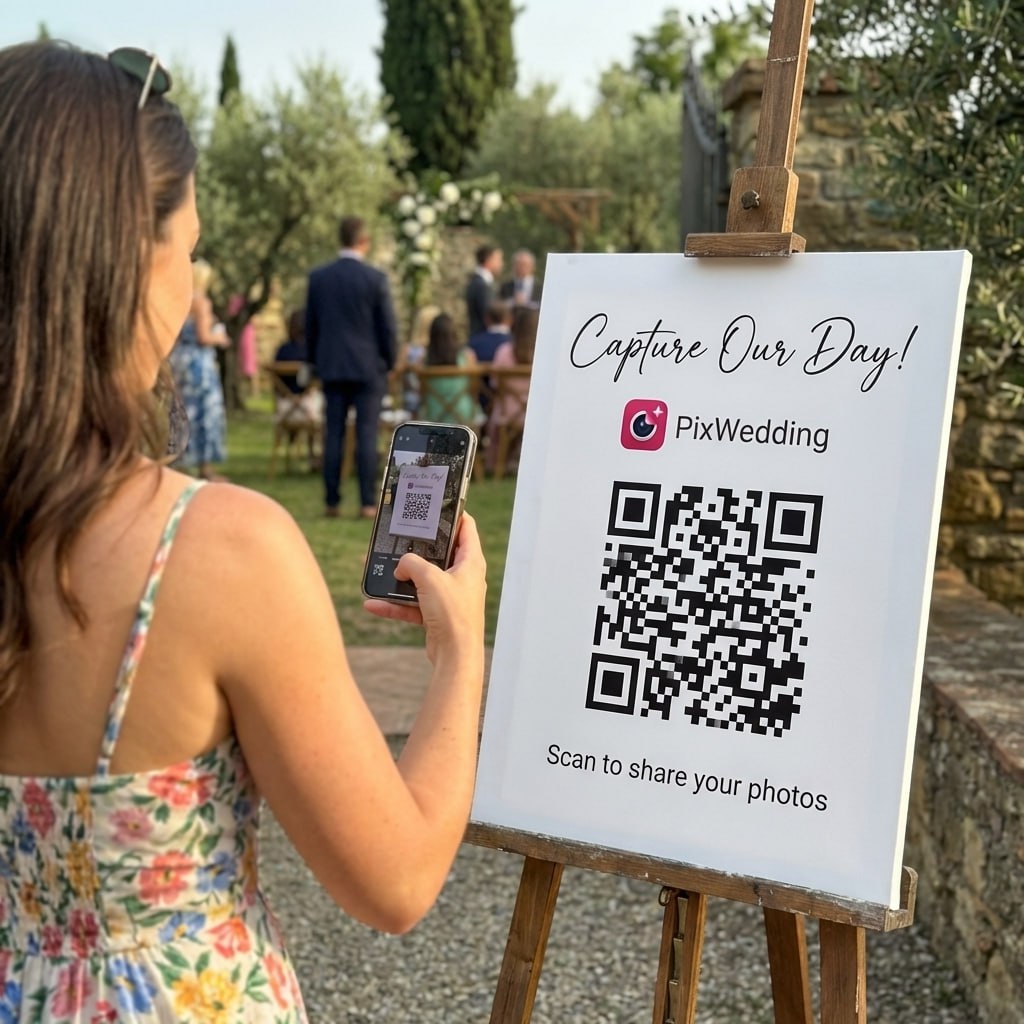
Pix generates a unique QR code for your album. You can print it on table cards, display it on a sign, or share it as an image in any group chat.
Guests scan and upload
Anyone with a smartphone (iPhone or Android) scans the QR code with their camera. Their browser opens directly to the upload screen. They select photos from their camera roll and tap Upload. No app download, no account, no password.
Photos arrive in full resolution
Photos upload at their original resolution. There is no compression applied by Pix. The album owner downloads the full collection as a ZIP when ready.
Album stays open as long as you need
The album does not close at midnight or expire after the event. Late uploaders who find photos on their camera roll days later can still scan and add them.

Wedding day
From the tables
Set Up Your Shared Album in 60 Seconds
Pix generates a QR code your guests scan to upload photos directly from their phone, no account, no app, no friction. Works at weddings, family reunions, corporate events, and any gathering where everyone has a different type of phone.

Ceremony moments
Scan to join the album
No app, no account
UPLOADING
Saving your moment
ALBUM
Emma & Jack
647 photos · 95 guests
Sarah B.


Dropbox File Request
Collect uploads without needing contributor accounts. Not a gallery.
Log in to Dropbox and go to File Requests
Sign in to dropbox.com. In the left sidebar, click File requests. Click New request.
Configure the request
Enter a title (for example: Wedding Photos Upload). Under Folder for uploaded files, confirm the destination folder. Add a description if you want contributors to see context.
Copy and share the File Request link
Click Create, then copy the generated link. Share it via text, email, or a printed QR code. Anyone with this link can upload files without needing a Dropbox account.
Know the limitations
Contributors upload into a folder but cannot see each other's uploads through the request link. It is a collection inbox, not a gallery. You will need to create a separate shared folder or album if you want contributors to browse what others uploaded.
Check your Dropbox storage
File Request uploads count against the Dropbox account owner's storage. A free Dropbox account gives 2GB. A wedding with 100 guests uploading 10 photos each at 5MB per photo adds up to 5GB, so a paid plan is likely necessary for large events.
Dropbox File Requests are not a gallery. Contributors upload into a folder but cannot see what others submitted. If you want a browsable album, move uploaded photos into a shared Dropbox folder with view access after collection. For events where guests expect to browse contributions, Pix or Google Photos are better options.
Platform Comparison: Shared Albums Where Everyone Can Upload
| Platform | Contributor Requirement | Full Resolution | Cross-Platform | Gallery View | Best For |
|---|---|---|---|---|---|
| iCloud Shared Album | Apple ID required | Yes | No (Apple only) | Yes | All-iPhone groups |
| Google Photos | Google account required | Only on Original setting | Yes | Yes | Groups on Google ecosystem |
| Pix QR Album | No account needed | Yes | Yes | Yes | Events, weddings, large groups |
| Dropbox File Request | No account needed | Yes | Yes | No (folder only) | Raw file collection |
Which Platform Should You Use?
Match your situation to the right option. The answer depends mainly on whether your contributors all have the same type of phone, and whether they can be expected to sign in to an account.
Everyone has an iPhone
iCloud Shared Album
Seamless, full-resolution, built into the Photos app everyone already uses. Enable Subscribers Can Post and invite by iMessage.
Mixed iPhone and Android group, all have Google accounts
Google Photos with Collaborate
Works on every device, integrates with Google accounts most people already have. Just make sure Collaborate is turned on before you share the link.
Large group (20+ people) at an event
Pix QR Album
No account required, no app download, just scan and upload. Works for iPhone and Android equally. Best conversion rate in large group settings.
Wedding guests (especially older relatives)
Pix QR Album
The lowest friction option. Guests do not need to remember a login or install anything. Print the QR code at every table and walk relatives through scanning it once.
You just want to collect raw files (not a viewable gallery)
Dropbox File Request
Best for collecting original files when the experience of browsing does not matter. Contributors do not need an account and uploads arrive in full resolution.
Team or ongoing project with regular contributors
Google Photos or Dropbox shared folder
Both handle recurring contributors well. Google Photos is better for casual browsing; Dropbox is better for file management and downloading originals.
Troubleshooting: Why Guests Cannot Add Photos
Most problems with collaborative photo albums come down to one missing toggle or one wrong assumption about accounts. Here are the most common issues and the exact fix for each.
Guests cannot find an "Add Photos" button in Google Photos
The Collaborate toggle is off. Open the album, tap the three-dot menu, go to Options, and turn Collaborate on. Then reshare the link. The old link should now work with the new setting.
Android friends cannot upload to my iCloud Shared Album
iCloud Shared Album upload access is Apple-only. Android users can only view via the Public Website link, not contribute. Switch to Google Photos with Collaborate on or use Pix for cross-platform uploading.
Google Photos photos look lower quality after upload
Storage Saver (formerly High Quality) compression is active. Contributors should go to Google Photos Settings, tap Backup, then change Upload size to Original quality before uploading to the shared album.
Nobody is scanning the QR code at the event
The QR code needs to be at eye level and on multiple surfaces: tables, the bar, the photo booth area, the back of place cards. A single sign by the entrance is easy to walk past. Smaller prints at every table consistently double scan rates.
iCloud Shared Album invite emails are going to spam
Ask recipients to check spam for an email from apple.com. Alternatively, invite via iMessage instead of email if you have the person's phone number. iMessage invites arrive as a notification inside the Messages app and do not hit spam filters.
Dropbox file request folder has no visible album
Dropbox File Requests are upload-only. Recipients cannot browse what others uploaded through the request link. After collecting uploads, you need to move the folder to a shared Dropbox folder and invite people with Can view access to create a browsable album.
Tips to Get More People Contributing
Picking the right platform is only half the problem. Getting the people in the room to actually upload is the other half. These practices consistently improve participation rates.
Show it before the event starts
Announce the album or display the QR code during a welcome moment. People who know the album exists at the start of the event upload far more than those who receive a link hours later.
Put the QR code at every table, not just one sign
A single poster by the entrance is easy to miss. Printed QR cards at every table, on the bar, and near the photo booth multiply uploads by making it impossible to miss.
Test the upload flow on both iPhone and Android before the event
A setting that works on your phone can behave differently on another platform. Do a 5-minute test with a friend on a different device type before the day.
Send a reminder 24 hours after the event
Many people intend to upload but forget. A single follow-up message the next day, when people are reviewing their camera rolls, typically doubles the final photo count.
Keep the album open for at least two weeks
Late uploaders exist at every event. Someone who finds a great photo three days later should be able to add it. Most platforms keep albums open indefinitely, but if you set an expiry, extend it.
Choose the lowest-friction option for your audience
If even one step involves "you need to create an account first," a meaningful percentage of people will drop off. For mixed groups and older guests, account-free options are worth it.
Related Guides
What Makes a Good Shared Photo Album for Groups
A shared album where everyone can add photos has three requirements: contributors need a way to upload, the album owner needs to keep full-resolution originals, and the process can not be so complicated that half the group skips it. Most platforms clear two of these bars and stumble on the third.
iCloud Shared Albums are excellent for all-Apple households but lock out Android users at the upload step. Google Photos handles cross-platform viewing well but requires every contributor to sign in with a Google account before they can add anything. Dropbox File Requests work without accounts but produce a chaotic folder, not a curated album. Pix was built specifically to solve all three: QR-based entry, no account for anyone, and full-resolution photos collected in one gallery.
- •Contributor access: can people outside your contacts add photos easily?
- •Resolution: does the platform compress or keep the originals?
- •Cross-platform: do iPhone and Android users both get full upload access?
- •Discovery: can contributors browse what others already uploaded?
- •Longevity: does the album disappear if you cancel a subscription?
Tips to Get More People Actually Contributing
The biggest drop-off in collaborative albums is not a technical problem but a friction problem. Every extra tap between "I want to share this photo" and "photo is uploaded" cuts participation significantly. Studies on user-submitted photo collections consistently show that requiring an account registration reduces submission rates by 60 to 80 percent compared to one-tap flows.
Print the QR code or sharing link somewhere physical if you are running an event. People see it, scan it, and upload in the moment. Sending a link over text later means photos that never make it into the album. For weddings specifically, a printed QR code card at each table has consistently outperformed app-based invites sent the week before the event.
- •Display the QR code or link prominently at the venue, not just in a text message
- •Send a reminder message 24 hours after the event when people are reviewing their camera rolls
- •Use a platform that does not require account creation from contributors
- •Keep the album open for at least two weeks after the event
- •Let contributors know the album is live so they feel their uploads are seen
- •For large events, assign one person per table or group to remind others to upload
Shared Album Questions Answered
Everything you need to know about our free tools and how they help your wedding day.
It depends on the platform. In Google Photos, open the album, tap the three-dot menu, go to Options, and turn on Collaborate. Anyone with the link who has a Google account can then add photos. In iCloud Shared Albums, open the shared album, tap People, and enable Subscribers Can Post. In Pix, guests simply scan a QR code and upload directly from their camera roll, with no account required from anyone.
On iPhone: open Photos, tap the Albums tab, tap the plus icon, choose New Shared Album, give it a name, invite people via email or iMessage, then tap Create. Once created, tap the album, tap the people icon, and enable Subscribers Can Post. To share with people who do not have iCloud, tap Public Website and share that link, though non-Apple users can only view, not upload.
Open Google Photos on your phone or photos.google.com on desktop. Create or select an album, then tap Share. On the sharing screen, turn on the Collaborate toggle. Share the resulting link. Anyone who receives that link and has a Google account can now add photos to the album. People without a Google account can view via the link but cannot add photos.
Yes. Pix is the main option that requires no account from contributors. Guests scan a QR code you print or display, and they can upload photos directly from their phone camera roll without creating any account. Dropbox File Requests also allow no-account uploads, but contributors cannot see or browse the album. For a browsable, no-account-required album, Pix is the cleanest solution.
No. iCloud Shared Album invites only work for Apple ID holders. People without an Apple device can view a Public Website link (a web URL Apple generates for the album), but they cannot upload photos through it. If your group includes a mix of iPhone and Android users, Google Photos with Collaborate enabled or Pix are the cross-platform options that actually work.
The most common reasons are: (1) In Google Photos, the Collaborate toggle under album Options is turned off. Turn it on to let contributors add photos. (2) In iCloud, Subscribers Can Post is disabled under the album People settings. (3) In iCloud, you invited someone without an Apple ID and they are only seeing the Public Website view, which is view-only. (4) In Dropbox, you shared a view-only link rather than inviting someone as a member with edit access or sending a File Request link.