
How to Make a Funeral Slideshow
A step-by-step guide to creating a tribute that honours a life -- from gathering photos scattered across family phones to the final video file ready for the service.
Quick answer
A funeral slideshow typically runs 5 to 8 minutes and uses 60 to 80 photos displayed at 4 to 5 seconds each. Arrange photos chronologically -- childhood through later years -- and pair them with one or two songs the person loved. Use any free tool (Google Slides, Canva, iMovie) and export as an MP4.
The hardest step is not the design -- it is collecting photos from relatives scattered across different cities. Open a shared QR album first, give family 48 to 72 hours to upload, then start selecting. The nine steps below walk through the full process from start to finished video file.
How long and how many photos
Use this table to decide how many photos to collect before you begin. The numbers assume 4 to 5 seconds per photo, which is the pace most audiences find comfortable.
Recommended range: 60 to 80 photos for a 5-to-8-minute service slideshow. You can go as low as 40 (longer on each image, more reflective feel) or as high as 100 for a comprehensive life portrait.
Step-by-step: how to make a funeral slideshow
- 1
Set a time target
Decide whether the slideshow will play during the service (aim for 5 to 6 minutes) or loop at a reception (8 to 12 minutes is fine). Your time target determines how many photos you need and how long each one should display.
- 2
Open a photo collection point for family
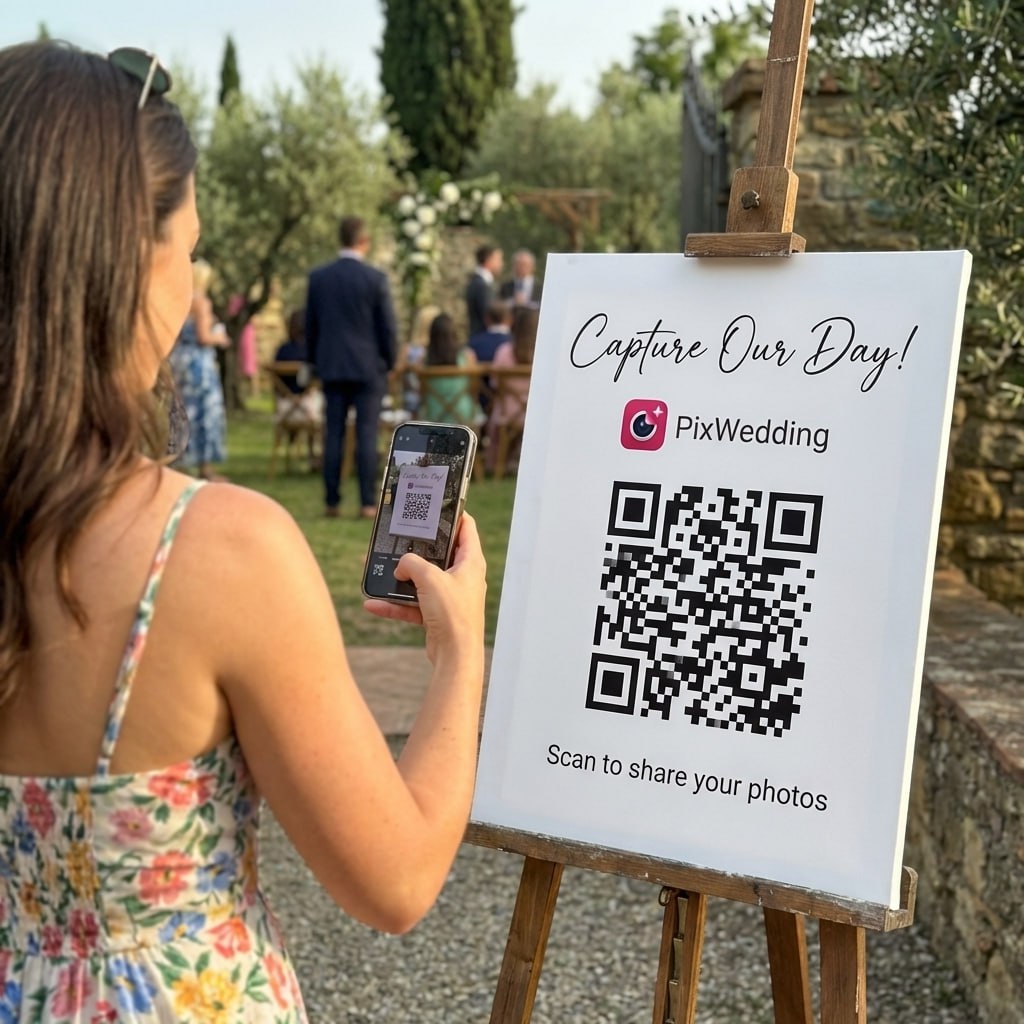
Before you start designing, open a shared album so relatives can upload photos from their phones. A QR-code album is the fastest method: one link, no login required, photos arrive in a single folder. Give family members 48 to 72 hours to contribute before you begin selecting.
- 3
Select and sort your photos
From everything submitted, pick 60 to 80 photos (or 40 to 100 depending on your target length). Sort them into rough life chapters: early childhood, school years, young adulthood, career or service, family life, later years. Delete duplicates and choose the sharpest version when you have several similar shots.
- 4
Arrange in chronological order
Create folders or a numbered sequence that follows the person's life from earliest to most recent. This is the most natural arc for an audience. You may choose to open with a single striking recent portrait, then drop back to childhood -- a common technique that grounds the viewer before the journey begins.
- 5
Choose your software
Google Slides, Canva, PowerPoint, or Apple Photos are all sufficient for most families. Import your sorted photos. Set each slide's duration to 4 to 5 seconds. If your software allows, add a simple cross-dissolve transition -- avoid anything animated or flashy.
- 6
Add minimal captions
For photos where context helps -- an old group shot, a place most viewers won't recognise -- add a brief caption (name, year, or location). Use a readable font in a neutral colour. Avoid full sentences on every slide; the photos should lead.
- 7
Select one or two songs
Add music the person genuinely loved, not a generic soundtrack. One song for a 5-minute slideshow is usually right. If the slideshow is longer, a second song can carry the final chapter. Set the audio volume so music is present but not overwhelming. If the slideshow will play in a room, check the sound system beforehand.
- 8
Review and export
Watch the full slideshow once with fresh eyes, ideally with a family member. Check for any photos that are out of order, blurry, or feel out of tone. Export as an MP4 video file, which plays reliably on any screen or projector. Keep the original project file in case you need to make last-minute changes.
- 9
Test at the venue
If possible, visit the venue before the service and test the video on the actual screen or projector. Bring the file on a USB drive as a backup, even if you plan to stream it. Funerals have firm start times -- a technical problem during the service is avoidable with a quick rehearsal.

First dance
You guys!!
The easiest way to collect photos from family
Open a QR album and family members can upload directly from their phones -- no app download, no login, no emailed ZIP files. Everything arrives in one place, ready for the slideshow.
From Mom
Scan to join the album
No app, no account
UPLOADING
Saving your moment
THE ALBUM
Emma & Jack
June 21, 2026
647 photos · 95 guests



SCAN TO TRY
pix.wedding/
your-wedding
What photos to gather: a shot-list checklist
Share this list with family members when you open the photo collection album. It prompts people to look beyond their most recent phone photos and dig out older prints or forgotten digital folders.
You do not need every item on this list. Eight to twelve strong photos from different life chapters are more powerful than forty mediocre ones.
Which software to use
You do not need dedicated memorial slideshow software. The tools most families already have are sufficient. Here is a quick comparison of the free and low-cost options.
Google Slides
FreeBest for: Families who want something simple and accessible from any device
Limitation: Export to video requires a third-party workaround or Chromebook
Canva
Free (paid tier for extra features)Best for: Polished look, easy to use, good template starting points
Limitation: Video export requires a Canva account; free tier has watermark on some templates
PowerPoint
Paid (Microsoft 365) or free via browserBest for: Fine timing control per slide, widely understood
Limitation: File needs to be exported as video before sharing with venue
Apple Photos (Mac)
Free (macOS)Best for: Quickest option if all photos are already on a Mac
Limitation: Limited customisation; music choices are restricted to iTunes library
iMovie (Mac/iOS)
Free (Apple devices)Best for: Better music control and timing than Apple Photos; exports clean MP4
Limitation: Apple devices only
Kapwing
Free (watermark on free tier)Best for: Browser-based, no download needed, good for non-technical users
Limitation: Watermark unless you upgrade; upload size limits on free plan
Choosing music
One song is usually enough for a 5-to-6-minute service slideshow. Two songs work well for longer tributes or when the person had strongly different musical tastes across their life.
The most meaningful choice is a song the person actually loved -- even if it is not traditionally "sad" or "memorial" music. A person who loved Fleetwood Mac or Johnny Cash is better honoured by their actual favourite track than by a generic piano piece.
Songs families often choose:
- "Somewhere Over the Rainbow" -- Israel Kamakawiwoole version (gentle, widely loved)
- "The Dance" -- Garth Brooks (reflective, about not knowing what's ahead)
- "My Way" -- Frank Sinatra (for someone who lived on their own terms)
- "What a Wonderful World" -- Louis Armstrong (warm, celebratory of life)
- "Time to Say Goodbye" -- Andrea Bocelli and Sarah Brightman
- "Go Rest High on That Mountain" -- Vince Gill (for a religious service)
- "Wind Beneath My Wings" -- Bette Midler (for a parent or partner)
- "Hallelujah" -- Leonard Cohen (instrumental version is particularly moving)
A note on copyright: for a private funeral or memorial service, copyright enforcement is rare. For a service livestreamed on YouTube or Facebook, the platform may mute the audio automatically. In that case, a royalty-free version from sites like Pixabay Music or Free Music Archive avoids that issue.
Common mistakes and how to avoid them
Too many photos, too fast
At 2 seconds per photo, a 60-photo slideshow becomes a blur. Hold each image for 4 to 5 seconds so viewers can actually absorb it.
Starting with a group shot nobody recognises
Open with a clear portrait of the person so the audience immediately connects. Save group shots for the middle chapters.
Jarring slide transitions
Cross-dissolve or fade-to-black are the appropriate transitions for a memorial. Spin, zoom, and bounce transitions feel disrespectful in this context.
Music too loud
The photos are the tribute. Music should be audible but not competing. Test in the room at a quiet conversational volume level before the service.
Waiting too long to collect photos
Family members often want to contribute but forget. Open the collection album as early as possible -- two or three days before you need to finalise the slideshow -- and send a single reminder.
Only using formal portraits
Candid moments -- a laugh at the dinner table, hands in the garden, a fishing trip -- often move people more than posed portraits. Ask family members specifically for candid shots.
No backup of the final file
Save the finished MP4 in at least two places: a USB drive and a cloud folder. One failure mode is enough to ruin a carefully planned tribute.
Collecting photos from scattered family members
When a family is geographically spread out, photo collection can take longer than building the slideshow itself. The people who have the earliest childhood photos are often the ones least comfortable with technology: an elderly sibling, a cousin who uses a flip phone, a neighbour who keeps prints in a shoebox.
There is no perfect solution, but a few approaches reduce friction:
QR album (fastest for phone-first family members)
Share a link or printed QR code. Family members tap, select photos from their camera roll, and upload. No account, no app download. Works on any smartphone. You receive all photos in a single download.
Shared Google Drive or Dropbox folder
Works well for family members comfortable with those platforms. The main friction is that contributors need a Google or Dropbox account and need to know how to upload. More steps than a QR album.
Mailed or scanned physical prints
For family members who have physical prints rather than digital photos, ask them to scan or photograph the prints and send via text message. A basic camera-to-phone photo of an old print is almost always usable at slideshow resolution.
Give family members a clear deadline and a single message asking for contributions. People who mean to help often need one specific prompt -- "please send your photos by Thursday" -- rather than an open-ended request.
Making the slideshow feel like the person
Include meaningful places, not just people
The family home, a favourite lake, a garden they tended for twenty years. Places carry memory. Showing them in the slideshow gives viewers something to anchor their own recollections to.
Show their hands and their work
A photo of someone's hands at a workbench, holding a grandchild, or stirring a pot they cooked from every Sunday carries a specificity that a posed portrait cannot. These are the images people tend to remember most.
Let candids do most of the work
Posed portraits establish what someone looked like. Candid photos establish who they were. A laughing photo at a birthday, a quiet moment reading, a blurry action shot from a game -- these feel alive in a way formal portraits rarely do.
Caption sparingly
A name and year below an old group shot helps viewers orient themselves. A three-sentence caption competes with the image. When in doubt, leave the caption out and let the photo speak.
Avoid over-editing
A gently brightened old photograph is better than one filtered to look "cinematic." The goal is to see the person clearly, not to make the slideshow look designed.
End with warmth, not grief
The final two or three photos shape how people leave the room feeling. Close with a warm image -- a smile, a group photo, a moment of joy -- rather than the most recent photo if it was taken during illness.
Related guides
Why Gathering the Photos Is the Hardest Part
Once you have all the photos in one place, building the slideshow is straightforward. The real bottleneck for most families is collection: the oldest childhood photos are on a cousin's phone in another state, the military pictures are in an aunt's attic, and the grandchildren's photos from last Christmas live on three different phones.
Traditional workarounds -- group texts, emailed ZIP files, shared Google Drive folders -- all require every contributor to figure out a different upload flow. People mean to send photos and forget, or the files are too large, or someone doesn't have a Google account.
A QR album solves this cleanly. You share one link or printed QR code. Family members scan it and upload directly from their camera rolls in under a minute. No account needed. Everything lands in one place you control. You can then download the full set and begin building the slideshow.
Making the Slideshow Feel Like the Person
Technical choices matter less than curation. The goal is for someone who knew the person to watch the slideshow and feel they are seeing them -- not a generic tribute.
Include photographs of meaningful places, not just portraits: the house they grew up in, the lake they fished at every summer, the kitchen where they made Sunday dinners. Objects carry memory too -- their hands at a workbench, a favourite chair, a garden they tended.
Avoid over-editing. A gently colour-corrected old photograph is better than one with a heavy filter. Gentle cross-fades between photos feel calm; flash cuts or zoom effects can feel jarring in a grief context.
Caption sparingly. A name and year under a photo, or a short phrase the person actually said, adds context without crowding the image. Let the photo do the work.
Funeral slideshow questions answered
Everything you need to know about our free tools and how they help your wedding day.
Most funeral and memorial slideshows run 5 to 8 minutes. That length holds attention during a service without becoming exhausting. If you have many photos, a second loop playing silently during the reception can extend the tribute without interrupting the ceremony.
Plan for 60 to 80 photos at 4 to 5 seconds each for a 5-to-8-minute slideshow. You can go as low as 40 (more breathing room per photo) or as high as 100 (faster pace). Fewer photos shown longer often feels more dignified than rushing through dozens of small moments.
Chronological order works best for most families: childhood and school years first, then young adulthood, career or military service, marriage and family life, and finally later years with grandchildren or close friends. It lets the audience experience the arc of the person's life.
Choose one or two songs the person genuinely loved rather than generic "sad" tracks. Instrumental versions are often gentler on a grieving room. Common choices include "Somewhere Over the Rainbow" (Israel Kamakawiwoole version), "The Dance" by Garth Brooks, "My Way" by Frank Sinatra, "What a Wonderful World" by Louis Armstrong, or a hymn the family held dear. Keep the music volume lower than you think you need -- the slides should speak.
The hardest part is often gathering photos from relatives who live in different cities or countries. A QR-code photo album -- where family members scan a code and upload directly from their phones -- removes the need for anyone to email large files or mail physical prints. Pix Wedding's memorial photo sharing page at pix.wedding/memorial-photo-sharing lets you set one up in minutes.
For most families, Google Slides (free, works on any device), Canva (free tier, polished templates), or PowerPoint are enough. Apple Photos on Mac has a built-in slideshow export. For more control over timing and transitions, iMovie (Mac/iOS) or Kapwing (browser) are good free options. Paid services like Animoto or Smilebox exist but are rarely necessary.