
How to Collect Photos for a Memorial From Family and Friends
A complete, gentle guide to gathering memories from the people who loved them most, with message scripts, a method comparison, and a step-by-step timeline.
Create a memorial photo albumQuick answer
The easiest way to collect photos for a memorial is a no-app QR album: you create a private link, share it by text or email, and family members tap the link, pick photos from their camera roll, and upload without a guest account or app download. Offer to walk relatives through their first upload if they need help. Compared to shared Google Photos albums (which need a Google account), Facebook groups (which need Facebook), or manual email collection (which requires you to sort everything yourself), a QR album gives relatives one upload destination to test and use.
Start the album 5-10 days before the service so photos arrive in time for a slideshow. Print the QR code to display at the venue. Keep the album open for 48 hours after the service for those who attended but did not upload on the day.
Every Method Compared
Five ways to gather memorial photos, compared by the steps relatives and the organizer need to take.
No-App QR Album
Best overallWhat the guest does: Scan QR or tap link, pick photos, upload
Pros: No account needed, works on any phone, photos arrive immediately, shareable archive
Cons: Requires internet connection at time of upload
Shared Google Photos / iCloud Album
Good for tech-comfortable familiesWhat the guest does: Accept invite, log in to Google or Apple, add photos
Pros: Familiar for relatives who already use the service
Cons: Requires account login, excludes people without that account type, Android/iOS mismatch
Ask by Text or Email (Manual Collection)
Fine for small families, labour-intensiveWhat the guest does: Receive message, attach photos, reply or send
Pros: Everyone knows how to text or email, no new service needed
Cons: Photos land in your inbox/messages, manual download and organization required, some photos lost in large attachments
Facebook Group
Works if family is already on FacebookWhat the guest does: Join the group, post photos to it
Pros: People can comment and react, feels communal
Cons: Requires Facebook account, older relatives may not have one or may not be comfortable with social media, save the files you want to keep outside the group
Printed Photo Collection at the Service
Great for display; pair with a digital method for archivingWhat the guest does: Bring a printed photo, hand it to the organizer
Pros: High sentimental value, originals have meaning, great for display at the venue
Cons: Does not create a digital archive, organizer must scan manually, risk of losing originals
Choose a collection method your family can use
Our memorial photo album accepts browser uploads without guest accounts. Ask one relative to test the link before sending it to everyone.
| Method | Family member does | Organizer does |
|---|---|---|
| Pix QR album | Open link and upload | Set guest viewing and download a ZIP on a paid plan |
| Shared photo service | Join the album and add photos | Check contribution settings and account requirements |
| Email or printed photos | Send files or lend prints | Save attachments or digitize prints, then return originals |
Settings checked September 20, 2026: Google Photos sharing, Apple Shared Albums, and joining a Facebook group.
Watch how a shared Google Photos album works
This tutorial shows the shared-album option for families who already use Google Photos.
Step-by-Step: Setting Up a QR Album
Create an album, test an upload, then share the link with family. Pix includes 20 guest uploads free, with no card.
- 1
Create a free Pix Wedding album
Go to pix.wedding and start a new album. Give it a name like "In Memory of [Name]" or "[Name]'s Photos". The album is private by default, only people with your link can see or add to it.
- 2
Copy the upload link or download the QR code
Once the album is created, you will get a shareable link and a QR code. The link can be texted or emailed. The QR code can be printed and placed at the service venue.
- 3
Send the link to close family first
Use one of the message scripts below. Send to immediate family 5-10 days before the service, then to extended family and friends the next day.
- 4
Print the QR code for the service
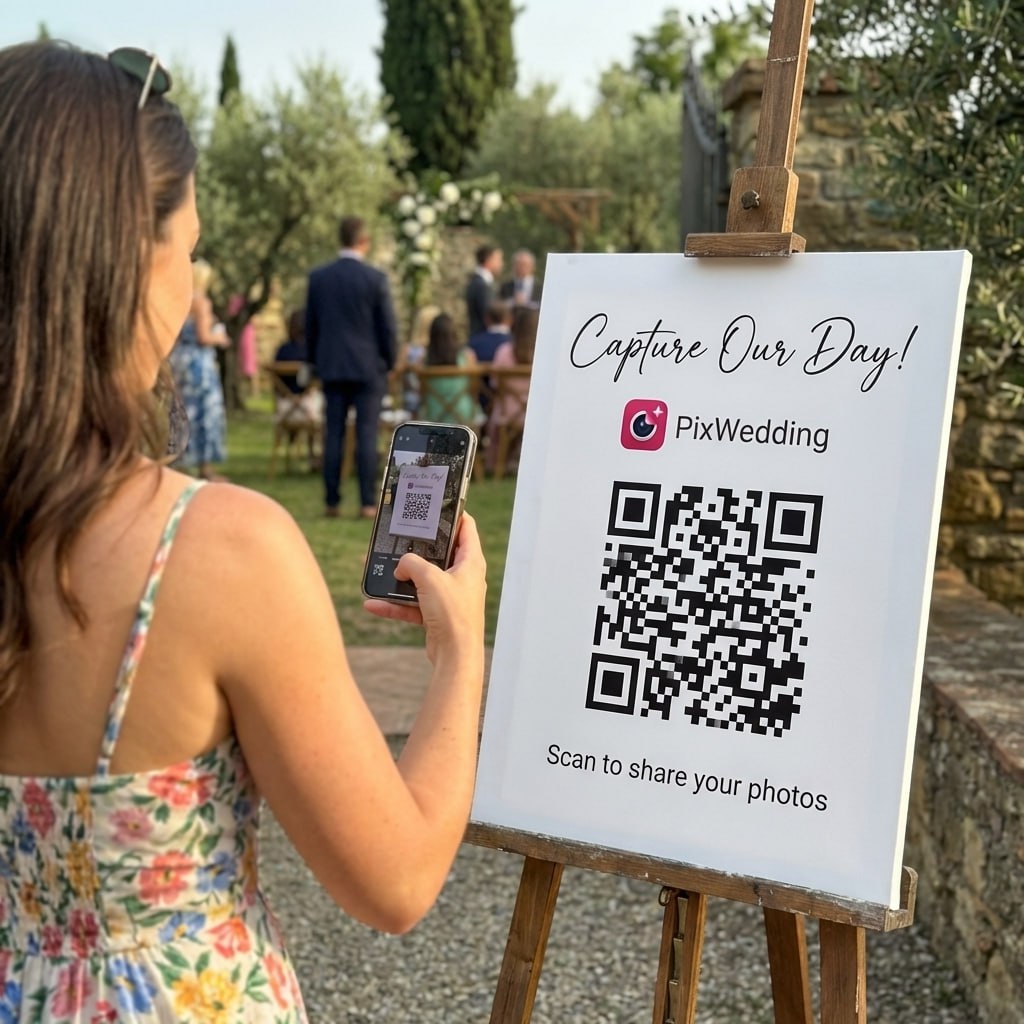
Print the QR code large enough to scan from its display position and test it, place it on a small card near the entrance or the guest book table. A short handwritten note like "Scan to add your photos" is all the instruction needed.
- 5
Send one gentle follow-up
24 to 48 hours before the service, send a short follow-up to the family group or thread. Keep it very brief. Something like "If you have not had a chance to add photos yet, the album is still open, just tap the link. No rush at all."
- 6
Keep the album open for 48 hours after
Some people will want to add photos after the service once they are home and have had time to look through their phone. Keeping the link active for a few days after means nothing gets missed.
- 7
Download and preserve the archive
Once contributions have settled, download the full album as a ZIP file on a paid Pix plan. Save it to a hard drive and a cloud backup. Share the archive link with family members so they each have their own copy.

In loving memory
Save a family copy
Start a tribute album in minutes
A private, no-app album family can upload to from any phone. No account required. 20 guest uploads free, no card.

From the family
Scan to join the album
No app, no account
UPLOADING
Saving your moment
THE ALBUM
Emma & Jack
June 21, 2026
647 photos · 95 guests





SCAN TO TRY
pix.wedding/
your-wedding
Ready-to-Send Scripts for Asking Family
Written for a grieving context, warm, brief, and easy to adjust. Copy and paste, changing the name and date.
Short text message
Best for: individual texts to close family, or a single group text thread
Email version (slightly longer)
Best for: a broader family email list, or for anyone who prefers email over text
Group message / social post
Best for: a family Facebook group, neighborhood association post, or community message board
Gentle follow-up reminder
Best for: sending 24-48 hours before the service to anyone who has not yet uploaded
Before, During, and After: A Simple Timeline
Follow this timeline to have photos ready for the service and preserved long after it.
Before the service (5-10 days out)
- Create a QR album or shared link and test it
- Send the first message to close family with the link and a gentle one-sentence explanation
- Send to extended family and friends the next day
- As photos come in, begin selecting the best ones for a slideshow
- Send one gentle follow-up 24 hours before the service to those who have not yet contributed
At the service
- Print the QR code on a small card or tent sign and place it near the entrance or guest book
- Mention during the service that there is a shared album where everyone can add photos
- Have a family member ready to help older guests scan the code if needed
- Collect any printed photos people have brought; photograph them on the spot
- Keep the album open for contributions for at least 48 hours after the service ends
After the service
- Download the full photo archive as a backup
- Send a message to all contributors with a link to the completed album
- Consider ordering a printed photo book as a keepsake for close family
- Save the downloaded files in a family archive before online storage ends
- If a slideshow was made, share the video file with family who could not attend
Handling Printed Photos From Older Relatives
Older relatives often hold the most precious photos, ones from decades ago that no one else has. Here is how to get them into your digital archive.
Ask them to photograph the print
A steady photo of a printed image taken in good light is usually sharp enough for a slideshow or a photo book. Send them a text that says: "If you have any old photos of [Name], could you take a picture of them with your phone and send to me? Even a quick photo is wonderful." Many older adults are comfortable taking a phone photo even if they struggle with apps.
Collect prints at the service and scan on the day
Place a small basket or tray near the entrance with a label like "Add your photos here, we will return them." Photograph each print with your phone during or after the service. The camera on a modern smartphone captures excellent detail from a printed photo in good light.
Use a scanning app for fragile or important originals
For fragile prints, avoid pressing or bending the original. Photograph it in even light, check that faces are sharp, and ask a relative to help with a scanner if needed.
Common Mistakes to Avoid
Small decisions that seem harmless but cut participation significantly, especially in a grieving context.
Asking for photos in a long group email chain
Replies get buried, you end up with attachments across dozens of threads, and people reply-all with condolences instead of photos. Use a single shared link instead.
Setting up a method that requires an account most people do not have
Apple Shared Albums also support other Apple devices and iCloud for Windows; a public website lets others view the album. Google Photos requires a Google account. Pick a browser-based method so Android and iPhone users, and those with no smart device account, can all participate.
Waiting until after the service to ask
Set a clear deadline for photos needed at the service. Ask before the service so photos are ready to use in a slideshow.
Sending too many follow-up messages
One initial request and one gentle reminder is enough. More than that feels intrusive during a time of grief. If someone has not contributed after two messages, let it go.
Using a public or unsecured album
Memorial photos are private and often include images of the deceased and family members who did not consent to public sharing. Use an album that is private-by-default and accessible only via the link you share.
Skipping the physical print collection
Some relatives only have printed photos from decades ago. These are often the most irreplaceable images. Ask them to photograph the print, or collect the print at the service and scan it yourself.
Privacy and Sensitivity Considerations
Memorial photos are private. A few simple decisions protect the people in them.
Keep the album private
Use a link-only album so photos are not publicly searchable. Anyone who receives a forwarded link may access it. Share it carefully; Pix lets the host turn guest viewing and downloads off.
Assign one person to moderate
Designate one family member to check incoming photos and remove anything that might be hurtful or inappropriate before the album is shared more widely. This is especially important if the album link is posted in a group where you do not know every participant.
Ask before including children in a slideshow
If the photo archive includes children who are not your own, check with their parents before featuring those photos in a public slideshow. Most families will have no concern, but it is a respectful step.
Save a backup copy offline
Cloud services can change terms, lose data, or shut down accounts. Download the full archive to at least one offline location (a hard drive or USB) so the photos are preserved regardless of what happens to any particular service.
Related Memorial and Photo Guides
Why Participation Rate Is the Only Metric That Matters
When you are organizing a memorial, you are asking people to do something during one of the hardest weeks of their lives. Keep the photo-sharing steps short and offer help where needed. An unfamiliar account login can leave a relative needing help. A Facebook group requires a profile not everyone has. An email chain creates a folder nobody manages.
The no-app QR album solves this by collapsing the entire process into one tap. The person taps the link in your text message, picks photos from their camera roll, and taps upload. Done. No password, no verification email, no app store. Test the upload process with a family member before sending the request to everyone.
For memorial services specifically, the no-friction argument is even stronger. People are emotionally exhausted. They want to contribute but they will not fight technology to do it. Remove every obstacle you can, and the photos come in.
- •QR album: guests upload in their browser without an account
- •Google Photos shared album: contributors use a Google account
- •Email/text collection: the organizer gathers attachments into one folder
- •Facebook group: contributors need Facebook accounts
- •Printed photo collection: photograph or scan each print and return the original
Keeping the Photo Archive After the Service
The photos you collect for a memorial have value well beyond the service itself. A shared album that family members can return to months or years later is a meaningful legacy. Before you set up your collection method, think about what happens to the album afterwards.
Pix paid plans store the album for 6, 12 or 24 months. Download the ZIP included on paid plans before storage ends, share it with family members, or use it as the source for a printed photo book later. With an email collection or Facebook group, photos are scattered and harder to consolidate after the fact.
If you have time, send a follow-up message to contributing family members two or three weeks after the service with a link to the full archive. Include a copy of the saved files so relatives can keep them beyond the online storage period.
Common Questions About Collecting Memorial Photos
Everything you need to know about our free tools and how they help your wedding day.
The easiest method is a no-app QR photo album. You create a private link or QR code, share it with family by text or email, and people scan it and upload directly from their phone camera roll, no account, no download required. Guests do not need to install an app or create an account.
Not with a QR album service like Pix Wedding. Guests scan the QR code or tap the link and upload straight from their browser. Older relatives and those who are not tech-savvy can contribute without any setup. This matters especially for memorial services, where the last thing anyone wants to deal with is an account registration screen.
Keep the message short and warm. Acknowledge the loss briefly, explain what you are trying to create (a shared memory album or slideshow), and give them a very simple action, one tap or one scan. Avoid long lists of instructions. The scripts in this guide are written specifically for a grieving context and can be copied and adjusted as needed.
Ideally 5 to 10 days before the service. This gives you time to receive photos, select the best ones for a slideshow, and print or download anything you want to display physically. If the service is in a few days, send the first request immediately and send one gentle follow-up 24 hours before. Ask before the service if you need photos ready for a slideshow.
Ask them to photograph the print with their phone camera and upload that. The quality is usually good enough for a slideshow or display. If someone cannot do this themselves, offer to borrow the print at the service and scan or photograph it there. A few scanned prints among digital originals is completely fine.
Aim for 40 to 80 photos for a slideshow, and as many as possible for a shared archive the family can keep long term. More variety is better, different eras, different people, candid moments alongside posed ones. As a planning example, 60 photos shown for five seconds each make a five-minute slideshow before titles and transitions.